
What Playback Speed Controls Actually Do
Most major streaming platforms now let you adjust playback speed, typically ranging from 0.5x (half speed) up to 2x or sometimes higher, directly within the app. At higher speeds, audio is processed to maintain a relatively natural pitch rather than just sounding sped up and squeaky, which is part of why this feature has become more usable in recent years compared to older, clunkier speed adjustment tools.
This matters because not all content needs to be watched at standard speed to be fully understood and enjoyed. Slower-paced documentaries, talk shows, and reality TV often hold up well at 1.25x to 1.5x speed, while fast-paced action sequences or dialogue-heavy dramas may lose important nuance if sped up too aggressively.
Step-by-Step: How to Use Speed Controls
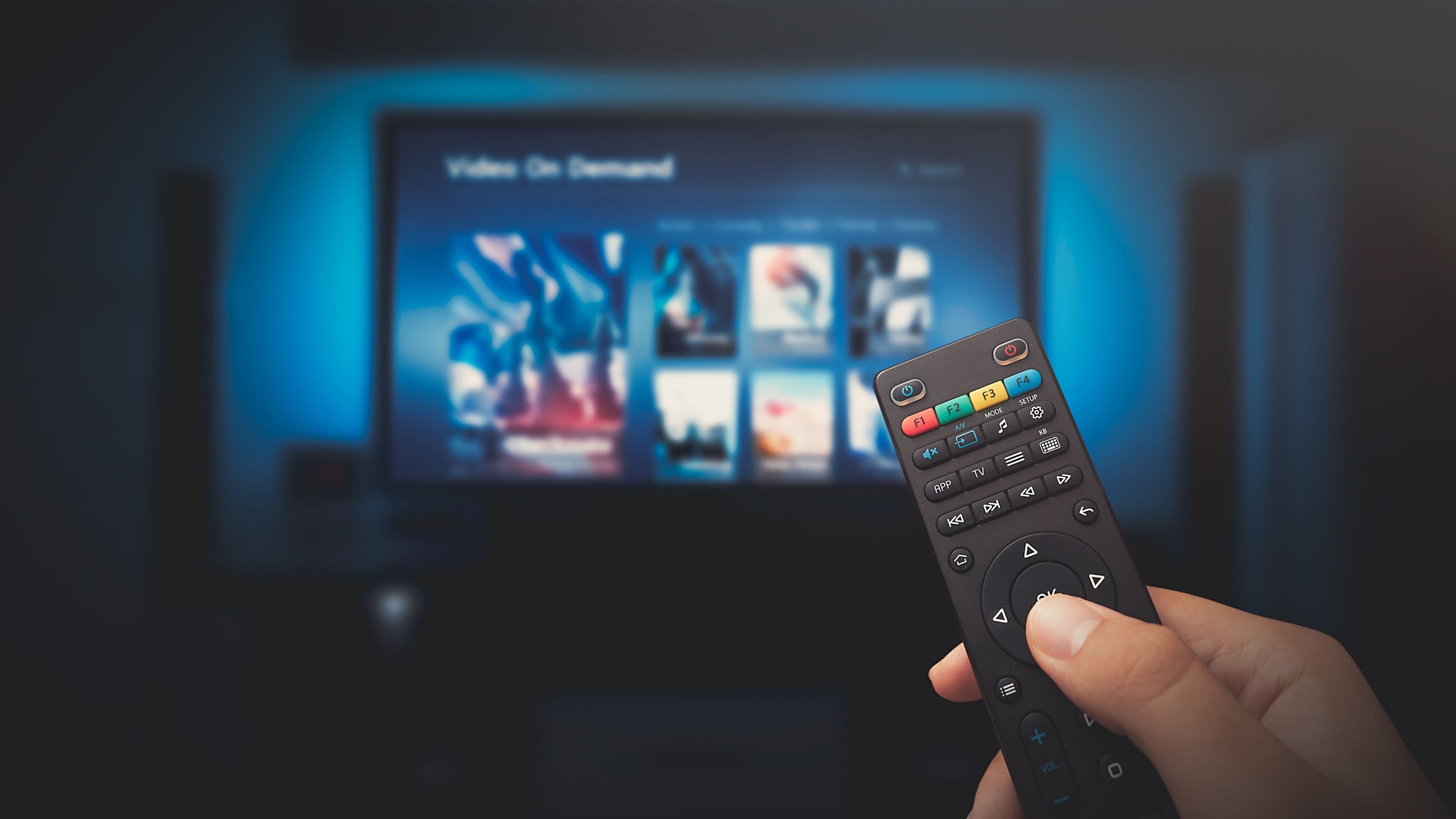
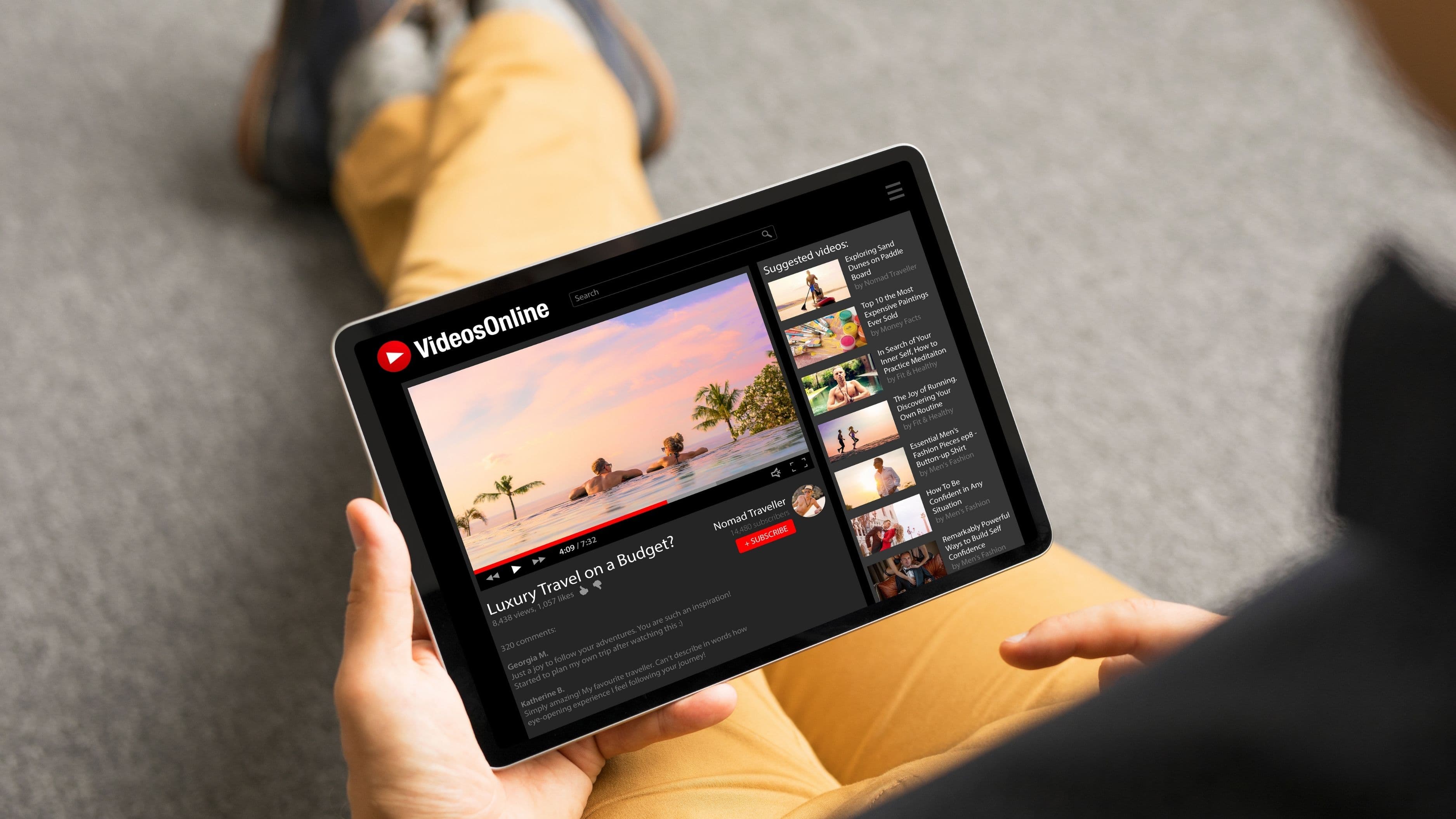
Check if your platform supports it. Netflix, YouTube, Disney+, Max, and several other major platforms support speed adjustment, though availability sometimes varies by device or app version. Look for a speed icon (often labeled "1x" by default) in the playback controls, usually accessible by tapping the screen during playback.
Start with a moderate speed increase. Rather than jumping straight to 2x, start at 1.25x to get a feel for how the adjusted pace affects your comprehension and enjoyment of a specific type of content. This gives you a baseline before deciding whether to push the speed higher for that particular show or genre.
Adjust speed based on content type, not as a blanket setting. A reality competition show or a slower interview-style podcast video might hold up fine at 1.5x or even higher, while a tightly written drama with fast dialogue or a film with deliberate pacing might lose something important at anything above 1.1x to 1.25x. Treat speed as a per-content decision rather than a single setting you apply to everything.
Use lower speeds for dense or technical content. If you're watching an educational video, a complex documentary, or anything with information you actually want to retain, consider dropping to 0.9x or even slower rather than speeding up, since comprehension and retention can suffer if you're processing dense information faster than is comfortable.
Combine with platform-specific features when available. Some platforms also offer "skip recap" or "skip intro" buttons alongside speed controls, and combining both can meaningfully cut down the total time spent on a season without missing actual content. This is a simple way to layer time savings on top of your speed adjustment.
Tips for Better Results
Give yourself a few episodes or videos to adjust to a higher speed before deciding it doesn't work for you, since your ear and brain often adapt to a slightly faster pace more quickly than you'd expect, especially with consistent practice. If you're watching with subtitles, a higher playback speed often feels more natural, since reading along helps your brain process faster dialogue more easily than audio alone.
It's also worth experimenting with different speeds for different genres rather than assuming one speed setting works universally. Comedies and dramas with carefully timed comedic or emotional beats tend to suffer more at high speeds than straightforward informational or reality content, where the pacing isn't doing as much narrative work.
Common Mistakes
Cranking every type of content up to maximum speed regardless of genre is one of the most common mistakes, since this often sacrifices comprehension and enjoyment for speed without actually being worth the trade-off for more nuanced or emotionally driven content. Ignoring how speed affects subtitle timing can also be an issue on some platforms, where subtitles may not sync as cleanly at higher speeds, creating a distracting mismatch between audio and text.
It's also easy to forget to reset your speed setting between different types of content, leading to an awkward experience where you accidentally start a slower-paced film at a speed setting left over from a faster-paced show. Checking your speed setting at the start of a new title is a quick habit that avoids this annoyance.
What This Won't Fix
Speed controls help you get through more content in less total time, but they won't substitute for actually prioritizing your watchlist. If you're trying to manage an overwhelming backlog, combining speed adjustments with intentionally pruning shows you're not genuinely excited about will get you further than speed alone. Speed controls are a tool for efficiency, not a fix for over-committing to more content than you realistically have time to watch.
It's also worth noting that not every platform offers the same range or quality of speed adjustment, and some live TV or sports streaming doesn't support speed controls at all, since the content is happening in real time rather than being a pre-recorded file you can manipulate.
FAQ
Does speeding up playback affect video quality? No – speed adjustments affect playback timing and audio pitch correction, not the underlying video resolution or quality, so your picture quality stays the same regardless of speed setting.
Will using speed controls mess up subtitle timing? Generally subtitles stay synced correctly at moderate speed increases, though at very high speeds on some platforms, subtitle timing can occasionally feel slightly off, so it's worth testing on a specific platform and title if this matters to you.
Is it worth using speed controls for movies, or just TV shows? This depends heavily on the specific film, since movies with deliberate pacing or significant emotional weight may lose something at higher speeds, making moderate or no speed adjustment a better fit for most films compared to looser, more casual TV content.
Which streaming platforms have the best speed control options? YouTube offers some of the most flexible speed controls, ranging from 0.25x to 2x, while platforms like Netflix and Max offer a more limited range, so checking your specific platform's settings menu is the best way to know exactly what's available to you.
A backlog of shows doesn't have to feel like an obligation hanging over you. Used thoughtfully, and matched to the right type of content, playback speed controls can help you get through more of what you actually want to watch without sacrificing the parts that make it worth watching in the first place.
📚 Sources
YouTube Help – Change Video Playback Speed - https://support.google.com/youtube/answer/91449
Netflix Help Center – Adjusting Playback Speed - https://help.netflix.com/en/node/123881