


This guide covers everything from what streaming actually is to which device to buy, which services to start with, and how to avoid the most common beginner mistakes.
What Streaming Actually Is
Streaming means watching video content over the internet in real time, without downloading a file to your device first. When you watch something on Netflix, YouTube, or Disney+, the video is being delivered to your screen continuously from a remote server. As long as your internet connection is fast enough to keep up, the picture plays without interruption.
This is different from traditional cable TV, where a signal is broadcast to your home through a physical cable connection and you're limited to whatever channels you're subscribed to. With streaming, you choose what to watch, when to watch it, and you only pay for the services you actually use. There's no set schedule, no recording required for shows you want to watch later, and no missing an episode because you forgot to set the DVR.
The main thing you need for streaming is a reliable internet connection and a device to watch on. Everything else builds from there.
Step 1: Check Your Internet Speed
Your internet connection is the foundation of everything in streaming. Without enough speed, you'll see buffering, low picture quality, and frustrating pauses mid-show. Here's what you need as a baseline.
For standard HD video (1080p), Netflix recommends at least 5 Mbps per stream. For 4K Ultra HD streaming, you need at least 25 Mbps. If multiple people in your household are streaming simultaneously – or if others are gaming or video calling at the same time – you need enough bandwidth to cover all of that at once.
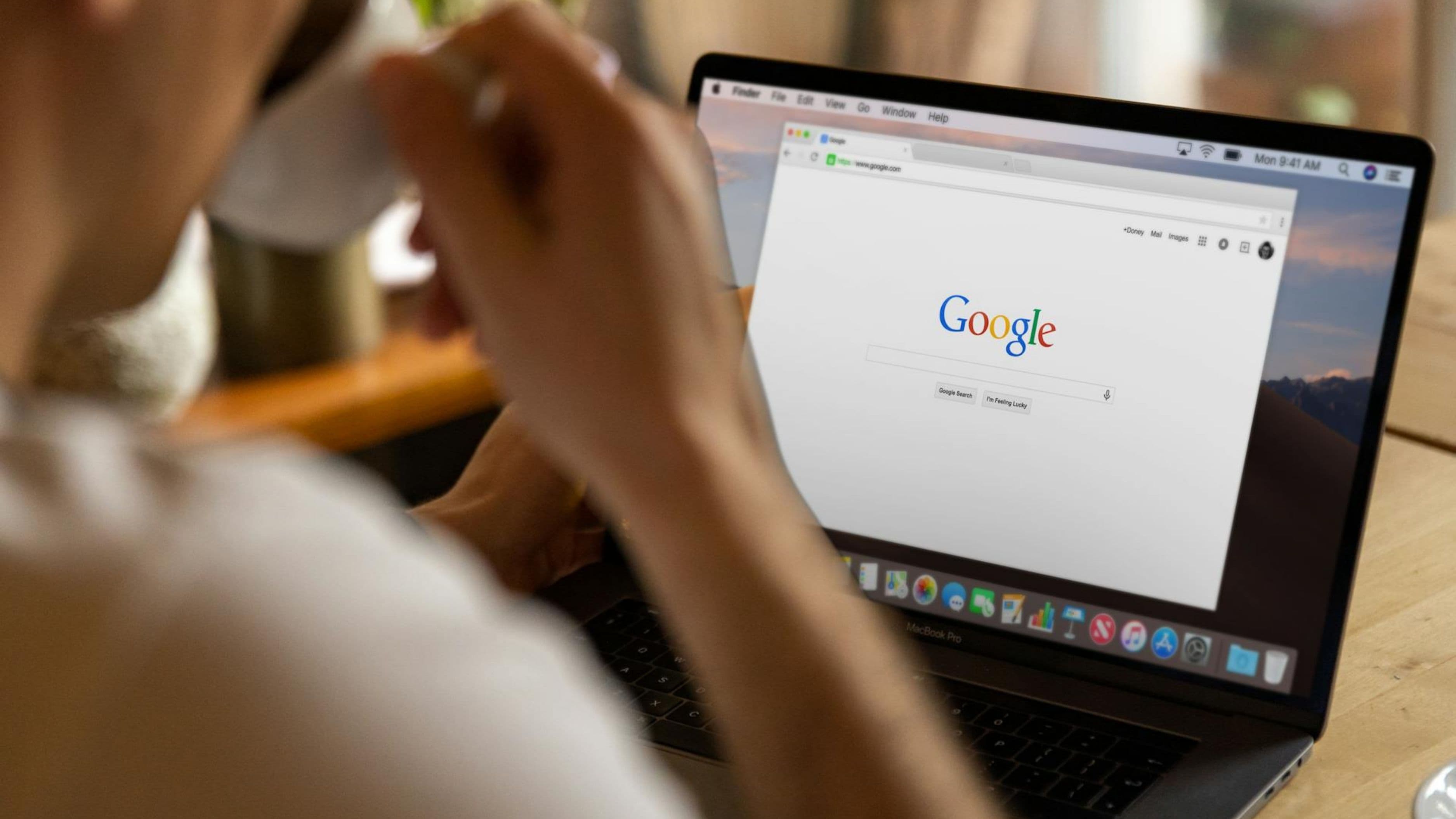
The easiest way to check your current speed is to search "internet speed test" in any browser and run the free test that appears at the top of the results (typically from Google or Speedtest.net). If you're consistently getting below 25 Mbps, it's worth calling your internet provider to ask about upgrading your plan before you invest in streaming hardware and services. Most households do fine with a 50–100 Mbps plan for streaming purposes.
Step 2: Choose a Streaming Device
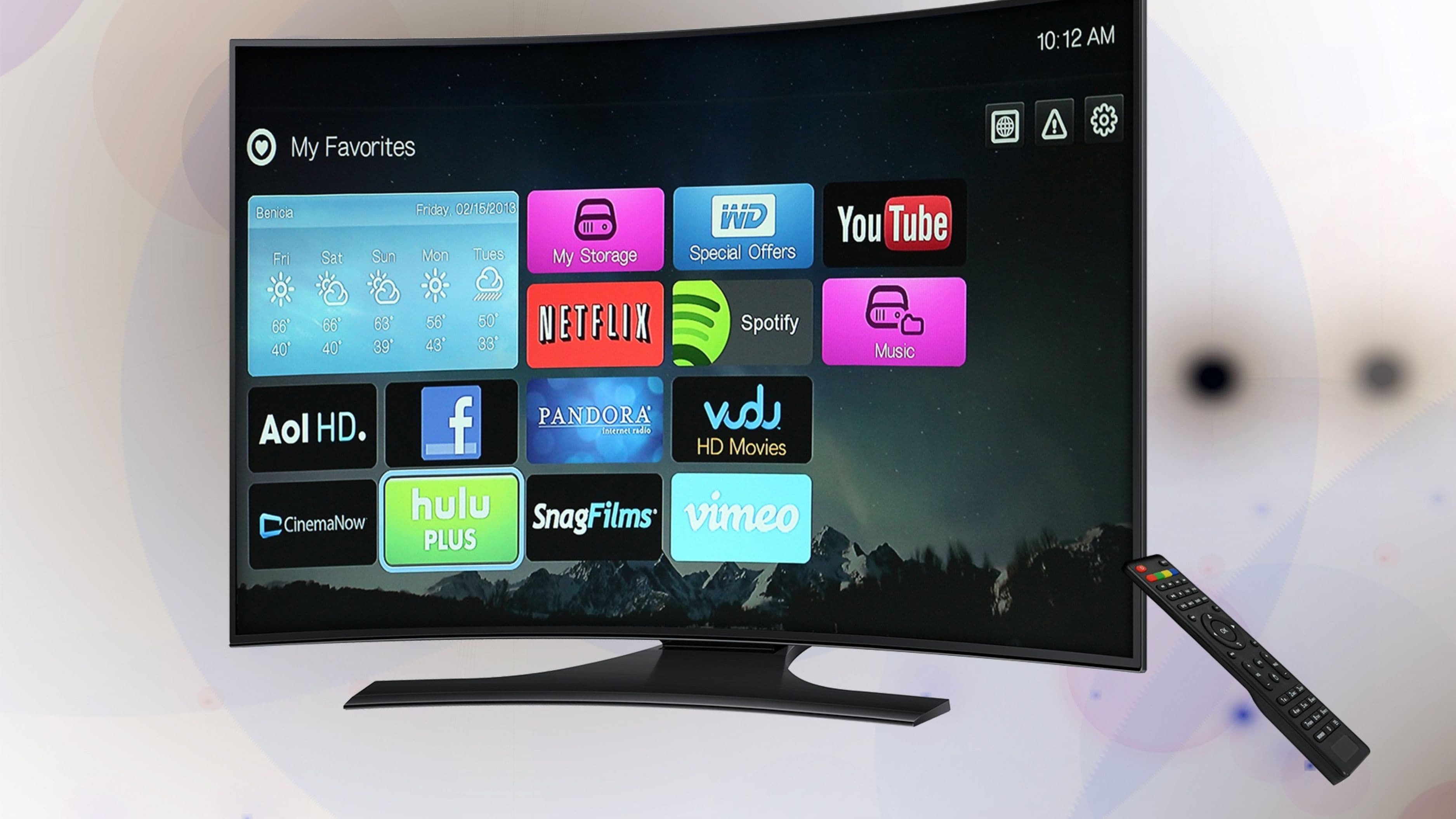
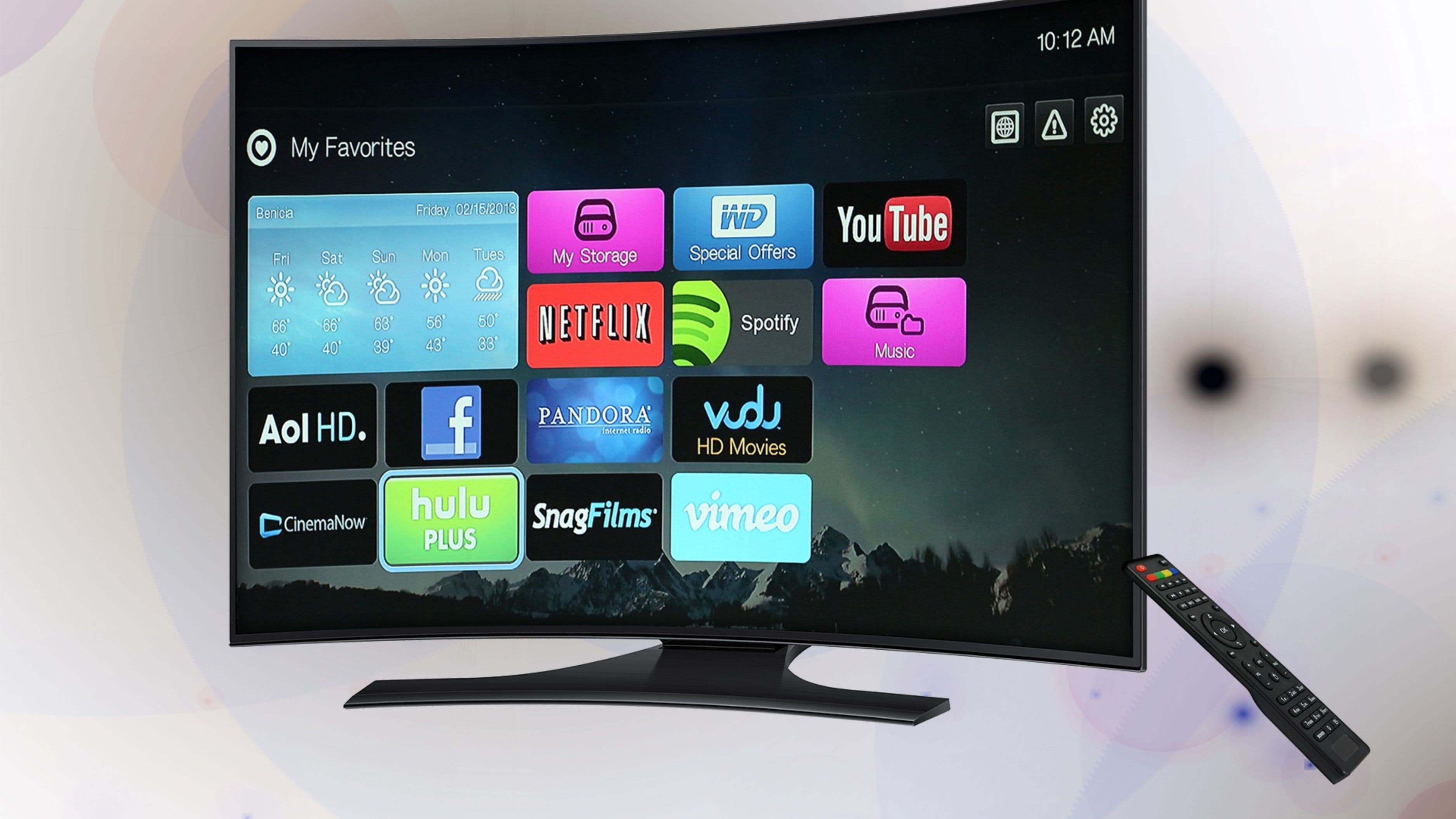
You need something to run streaming apps on. You may already have one without realizing it. Smart TVs sold in the last five to seven years typically have streaming apps built in, which means you might be able to start watching without buying anything at all. If your TV has a home screen with apps like Netflix or Disney+ already visible, you're set.
If your TV doesn't have smart TV capabilities, or if the built-in apps on your older smart TV run slowly and feel outdated, a dedicated streaming device is the fix. The main options worth knowing about are:
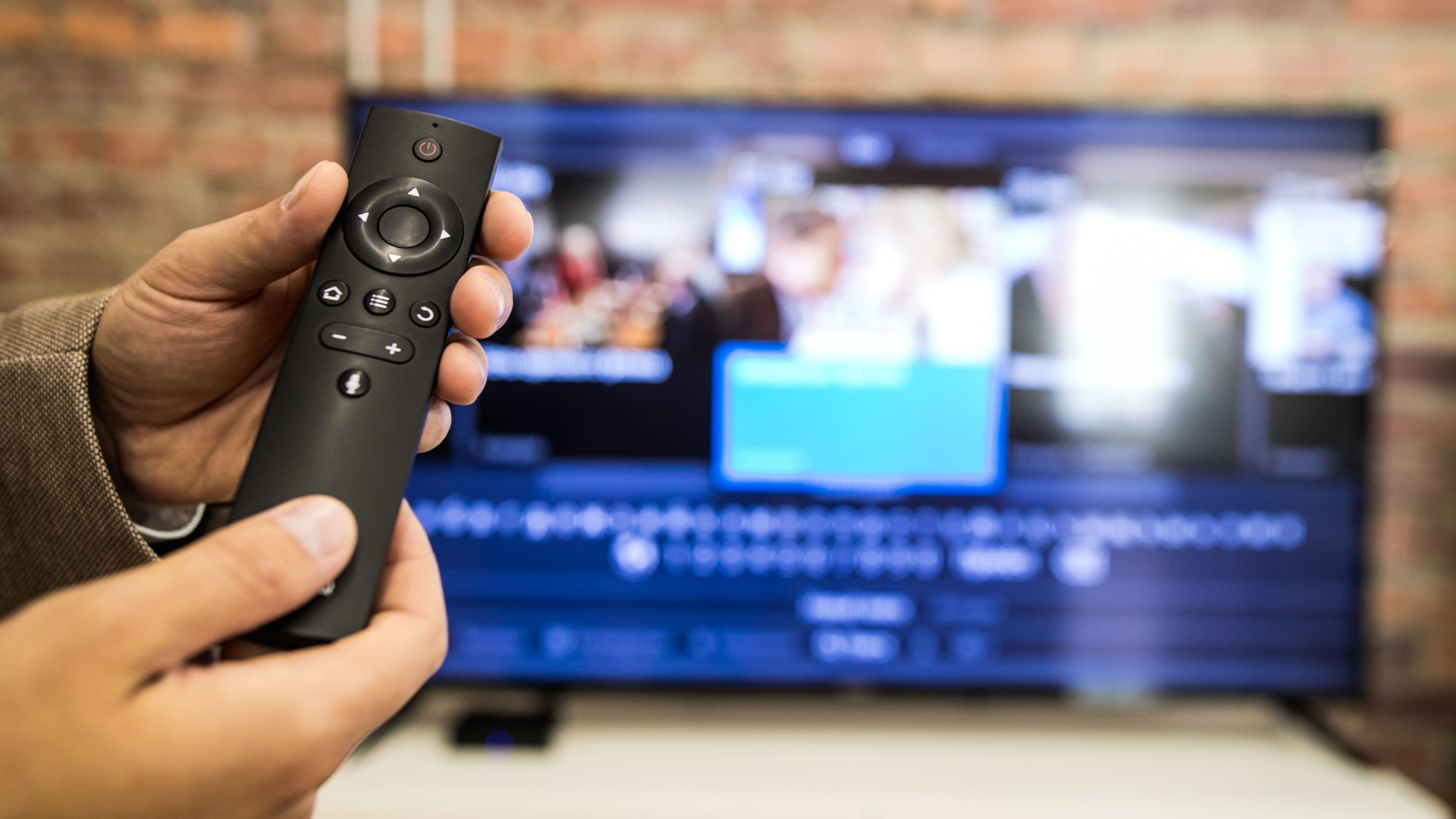
Amazon Fire TV Stick – One of the most popular and affordable options, typically $29.99–$49.99 depending on the model. Plugs into your TV's HDMI port, runs Amazon's app ecosystem, and works with all major streaming services. The Alexa voice remote is useful for search. The main limitation is that it integrates Amazon's own content more prominently than other platforms, but it runs everything well.
Roku Streaming Stick or Roku Express – Roku devices are consistently rated as the most user-friendly streaming hardware available. The interface is simple, neutral (not biased toward any one streaming service), and easy to navigate even for first-time users. Prices start at $29.99 for the Roku Express and go up to $99.99 for the 4K streaming models. If you want one recommendation for a first streaming device, Roku is it.
Google Chromecast with Google TV – A solid mid-range option at around $49.99. It uses Google's app ecosystem, works well with Android phones, and integrates Google Assistant voice control. The interface is slightly more complex than Roku but has improved significantly in recent generations.
Apple TV 4K – The premium option at $129–$179. Excellent performance, tight integration with iPhone and iPad, and the best quality streaming in the lineup. Worth the cost if you're already in the Apple ecosystem; harder to justify otherwise when cheaper options stream equally well for most content.
For most beginners, a Roku Streaming Stick 4K at around $49.99 hits the right combination of simplicity, performance, and price.
Step 3: Pick Your First Streaming Services
This is where most beginners get overwhelmed by options, so the key is to start with one or two services rather than subscribing to everything at once. Here's a practical guide to the services worth knowing about.
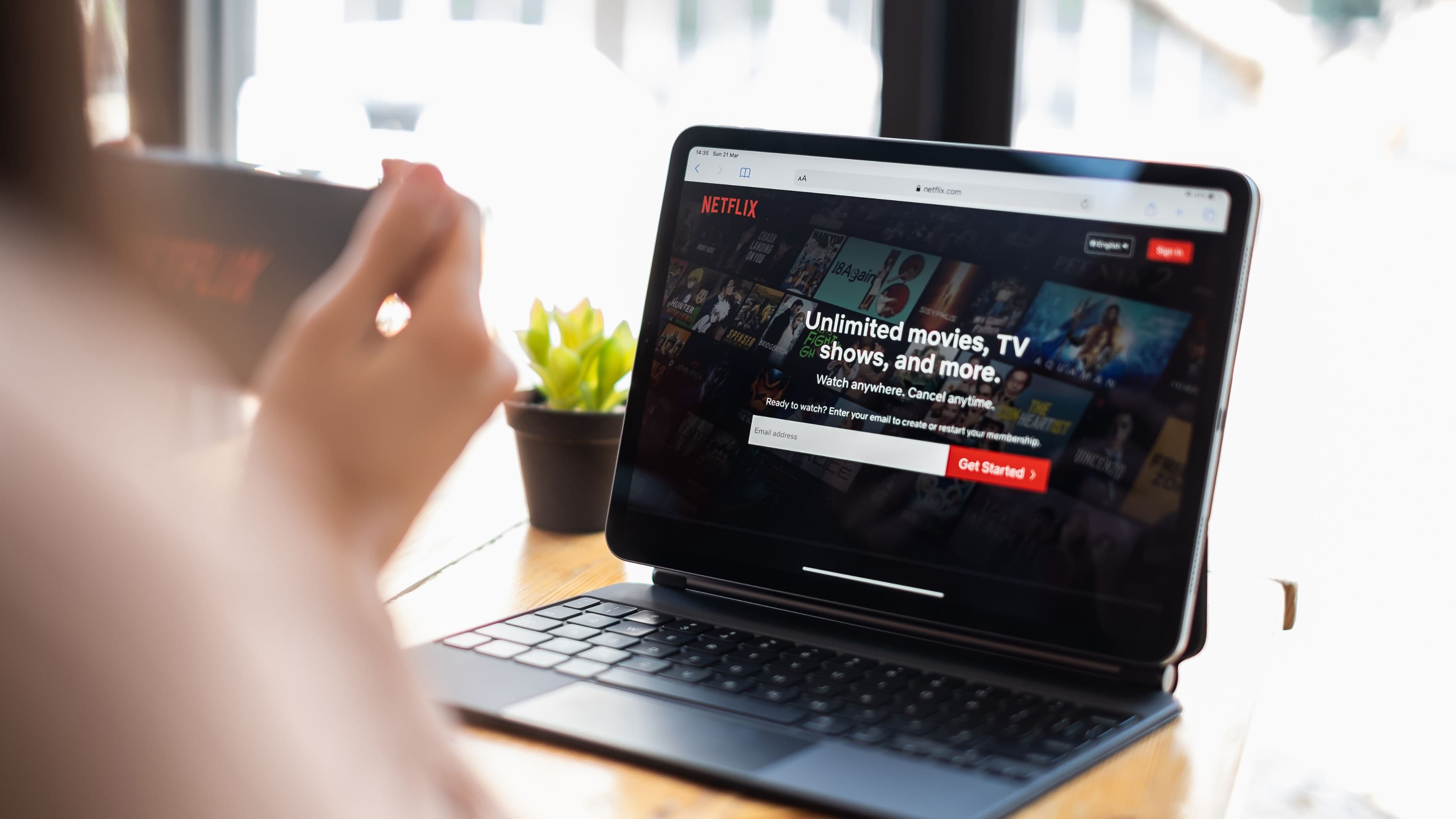
Netflix is the broadest starting point. Massive library of original series, films, documentaries, stand-up comedy, and international content. Most households will find enough here to keep them busy for months. Plans range from $6.99/month (with ads) to $22.99/month for premium 4K. For most people starting out, the standard plan at $15.49/month is a reasonable starting point.
Disney+ is the best value for families or anyone who loves Marvel, Star Wars, Pixar, Disney classics, or National Geographic. At $7.99/month with ads or $13.99/month without, it's one of the most affordable major services for the volume and quality of content it provides. If you have kids, this is typically the first subscription worth getting.
Amazon Prime Video is worth checking before you subscribe to anything, because it's included with Amazon Prime membership (which costs $14.99/month or $139/year). If you're already a Prime member for the shipping benefits, you already have access to a substantial streaming library. The interface is slightly cluttered – Amazon mixes its included content with rentals and purchases – but the included content is genuinely good.
YouTube (free, ad-supported) is an underutilized resource for beginners. An enormous amount of genuinely excellent content is available for free on YouTube – documentaries, educational content, cooking shows, travel, music, full-length films, and more. Before paying for additional services, explore what YouTube offers. It won't replace a dedicated streaming service for long-form drama or scripted content, but it covers a lot of viewing needs at no cost.
Hulu is worth considering if you want access to current-season TV from major networks (ABC, NBC, Fox) alongside a broad streaming library. Plans start at $7.99/month with ads or $17.99/month without. Hulu is also available as part of the Disney Bundle with Disney+ and ESPN+, which often offers better combined value than subscribing separately.
For a beginner household, the simplest starting setup is: Netflix + Disney+, or Amazon Prime Video + Disney+ if you're already a Prime member. That gives you a large combined library at a reasonable combined monthly cost.
Step 4: Set Up Your Device and First Service
Once you have your device and have chosen a service to start with, the setup is straightforward.
Plug your streaming device into your TV's HDMI port and power it via USB (most devices come with a cable that plugs into either a wall adapter or the TV's USB port). Turn on the TV, switch the input to the HDMI port you used, and follow the on-screen setup instructions. You'll connect to your home Wi-Fi network and sign in with or create an account for the streaming service. The whole process typically takes five to ten minutes.
One thing worth doing during setup: create separate profiles for different members of your household. Most streaming services support multiple profiles under one account, and using separate profiles means each person gets personalized recommendations based on what they actually watch, rather than a mixed feed from everyone's viewing history.
What the Ongoing Costs Actually Look Like
Streaming is generally cheaper than cable, but it can creep up if you subscribe to everything without thinking about it. Here's a realistic monthly cost picture.
A solid starting setup with one or two services runs $15–$30/month. If you add a third service – say, Paramount+, Apple TV+, or Max – you're looking at $25–$50/month. That's still typically less than a mid-tier cable package, but it's worth being intentional about what you're actually watching before adding more.
The smarter approach is to subscribe to one or two services, watch through what interests you over a month or two, cancel, and add a different service for the next stretch. This "service rotation" approach means you're effectively getting access to multiple services' content over a year without paying for all of them simultaneously. Streaming services make cancellation easy and don't penalize you for coming back.
What to Avoid
Subscribing to multiple services on the first day. It's tempting when the setup is easy and everything looks appealing, but most households end up paying for services they barely use. Start with one or two and add more only when you've genuinely run out of things to watch.
Ignoring the free trials. Most major streaming services offer seven-day to one-month free trials for new subscribers. Use them to test a service before you commit. Set a calendar reminder to cancel before the trial ends if you're not sure you want to keep it.
Forgetting to check what's already included. Amazon Prime Video, Apple TV+ bundled with new devices, and YouTube (free) are often already accessible without any new cost. Check what you already have access to before signing up for something you're paying for separately.
Buying the most expensive streaming device right away. A $30 Roku Express or basic Fire TV Stick handles all major streaming services perfectly well for most viewers. You only need to upgrade to a more expensive device if you specifically want 4K streaming and have a 4K TV to watch it on.
Using a slow Wi-Fi connection and not troubleshooting it. If streaming keeps buffering, the issue is almost always your internet speed or your device's Wi-Fi signal strength. Moving your router closer to your streaming device, or using a Wi-Fi extender, often resolves the problem without any subscription changes.
FAQ
Do I need a smart TV to stream? No. A streaming device like a Roku, Fire TV Stick, or Apple TV plugs into any TV with an HDMI port and adds streaming capability. Even older TVs work fine with a streaming stick.
Can I watch live TV through streaming? Yes. Services like YouTube TV, Hulu + Live TV, and FuboTV offer live television channels through a streaming subscription, functioning as a direct cable replacement. These typically cost $65–$90/month and include live sports, news, and network programming. They're worth considering if live sports or breaking news coverage is important to you.
What happens if my internet goes out? Streaming stops working without an internet connection. Some services (Netflix, Disney+, Amazon) allow you to download content to a mobile device for offline viewing. If internet reliability is a concern, downloading episodes in advance on a phone or tablet before trips or outages is the practical workaround.
Is streaming available in 4K? Yes, on most major services, but you need a 4K TV and a streaming device that supports 4K output (most current Roku, Fire TV, and Apple TV devices do). You also need a fast enough internet connection – 25 Mbps or more recommended for 4K streaming.
Can two people watch the same streaming service at the same time? It depends on the plan. Netflix's standard plan supports two simultaneous streams; its premium plan supports four. Disney+ standard allows four streams. Most services specify the number of simultaneous streams on their pricing page. If your household needs more screens, upgrading to a higher tier is usually cheaper than subscribing to the same service twice.
Outro
Streaming really does take less than an afternoon to set up from scratch, and once it's running it's genuinely more flexible, cheaper, and easier to manage than a traditional cable subscription. Start with the basics – a Roku or Fire TV Stick, one or two services, and a speed check on your internet – and build from there. There's no wrong first step as long as you're not overpaying for services you're not using.
📚 Sources
Netflix – Internet Connection Speed Recommendations: https://help.netflix.com/en/node/306
Roku – Which Roku Device Is Right for You: https://www.roku.com/en-us/products/compare
Amazon – Fire TV Streaming Devices Comparison: https://www.amazon.com/b?ie=UTF8&node=8521791011
Speedtest by Ookla – Free Internet Speed Test: https://www.speedtest.net
Consumer Reports – Streaming Services Guide: https://www.consumerreports.org/electronics-computers/streaming-services