
Why Live Streaming Buffers More Than On-Demand
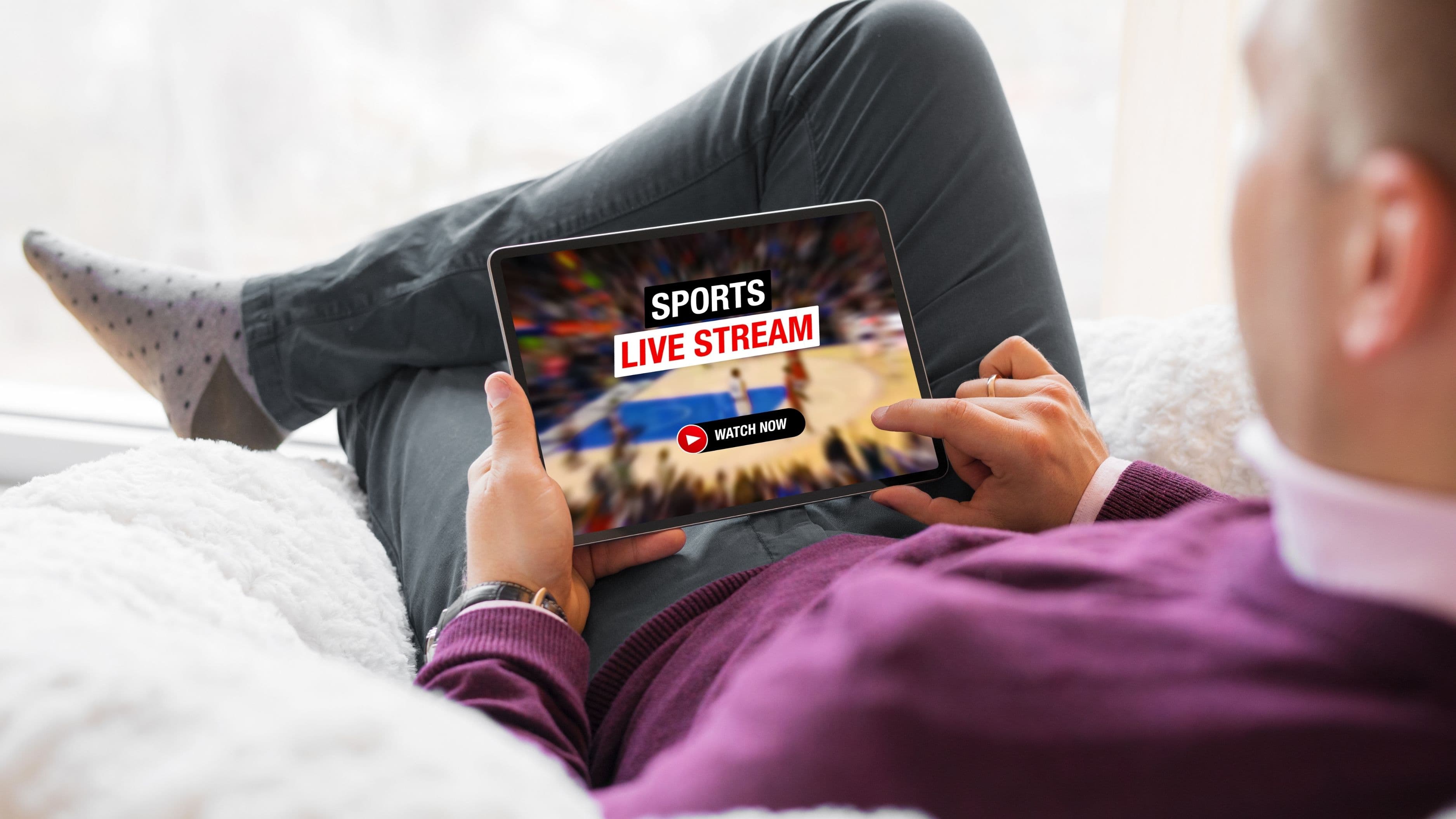
Before getting into fixes, it helps to understand why live events are harder to stream than a Netflix show. On-demand content is preloaded and highly optimized – streaming services compress it, cache it globally, and deliver it through networks tuned specifically for their content. Live streams work differently. The content doesn't exist until it's happening, which means it can't be pre-cached or buffered far ahead. The delivery chain – the event, the broadcast infrastructure, the CDN (content delivery network), and then your home network – has more real-time dependencies, and any bottleneck in that chain shows up as buffering on your end.
During major live events, CDN congestion is a real factor. When millions of people hit play at the same time – a Super Bowl kickoff, a pay-per-view main event, a streaming-only concert – even well-resourced platforms can experience strain at the delivery layer. Some buffering during genuinely high-demand moments is outside your control. But most buffering problems are local – your home network, your device, or your connection type – and those you can fix.
Step 1 – Test Your Internet Speed First
Before changing anything, run a speed test at fast.com or speedtest.net and compare the result against what live streaming actually requires. Most streaming platforms recommend a minimum of 25 Mbps for HD live content, and 50 Mbps or higher for 4K or for households where multiple devices are active simultaneously. If your speed test comes back well above those numbers, your connection isn't the primary problem. If it's at or below the minimums, that's where to start.
Speed alone isn't the full picture, though. Latency (the delay between your device and the server) and packet loss (data that doesn't arrive correctly) affect live streams more than on-demand content. A connection with 100 Mbps download speed but high latency or packet loss will still buffer on live content. If your speed test shows acceptable download speeds but you're still having problems, check the latency number – anything above 100ms for a home broadband connection is worth investigating.
Step 2 – Switch to a Wired Connection If You Can
Wi-Fi is convenient but introduces instability that wired connections don't have. Wireless signal quality fluctuates with interference from neighboring networks, physical obstructions like walls and floors, and the distance between your device and your router. For live streaming specifically – where you can't buffer ahead to absorb drops – even brief wireless instability that wouldn't noticeably affect on-demand viewing can cause a live stream to stutter or pause.
If your streaming device is a smart TV, game console, or streaming stick near your router, connecting it via ethernet is the single highest-impact change you can make for live streaming reliability. A basic ethernet cable costs $5–$10 and takes two minutes to set up. If running a cable isn't practical, a powerline adapter kit ($30–$60) sends your internet connection through your home's electrical wiring and provides a near-wired experience without running cable across the room.
Step 3 – Optimize Your Wi-Fi Setup If Wired Isn't an Option
If you're staying on Wi-Fi, a few changes can significantly improve stability. The most impactful is ensuring your streaming device is connected to the 5 GHz band of your router rather than the 2.4 GHz band. The 5 GHz band is faster and less congested but has shorter range. If your streaming device is in the same room as your router or close to it, connecting to 5 GHz almost always improves performance. If the device is far from the router, a mesh Wi-Fi system or a Wi-Fi extender placed midway between the router and the device reduces the signal degradation that causes intermittent drops.
Reducing the number of devices actively using your network during a live event also helps more than people expect. Every device streaming, downloading, or syncing in the background is competing for bandwidth. Ask others in the household to pause large downloads, pause automatic backups, and avoid running 4K on multiple devices simultaneously during the event window. You can also use your router's QoS (Quality of Service) settings – if your router supports it – to prioritize traffic from your streaming device over other devices on the network.
Step 4 – Lower Your Stream Quality One Step
This feels counterintuitive but works reliably. If you're trying to stream at 4K or 1080p and buffering, manually dropping the stream quality to 1080p or 720p removes the bandwidth demand that's causing the buffer. Live streams in 720p at 60fps look excellent on most TVs and monitors – the difference between 720p and 1080p during a fast-moving live event is far less noticeable than the difference between smooth 720p and buffering 1080p. Most streaming platforms have a quality setting in their playback menu; find it before the event starts so you're not hunting for it when buffering begins.
Some apps have an "auto" quality setting that's supposed to adjust dynamically to your connection speed. This works reasonably well for on-demand content but can cause visible quality dips during live events because the adjustment happens after buffering has already started. Setting a fixed, slightly lower quality ahead of time tends to produce smoother results than relying on automatic adjustment.
Step 5 – Close Background Apps and Free Up Device Resources
Your streaming device – whether it's a smart TV, Apple TV, Fire Stick, Roku, or your phone – runs background apps that consume memory and processing power. On devices with limited RAM (Fire Sticks and budget streaming boxes in particular), a full memory cache from multiple apps can cause live streams to drop frames or buffer even when the network connection is fine. Closing all other apps before starting a live stream frees up device resources for the player.
On smart TVs, finding a hard restart option (usually in settings, or by physically unplugging the TV for 30 seconds) before a major event clears the cache and starts fresh. It takes two minutes and often resolves streaming problems that seemed network-related but were actually device-related. If your streaming device is older – more than three to four years – and you're consistently having live event performance issues, the device itself may be the bottleneck. Budget streaming devices from two to three years ago struggle with today's higher-quality live streams in ways that weren't an issue when they were released.
Step 6 – Check the Platform Status Before Assuming It's You
During major live events, streaming platforms sometimes experience their own infrastructure issues that have nothing to do with your home setup. Before spending 30 minutes troubleshooting your network, check whether the platform itself is having problems. Downdetector (downdetector.com) aggregates real-time user reports of service outages and shows whether others are reporting issues with the same platform at the same time. If dozens or hundreds of people are reporting the same problem simultaneously, it's a platform issue – and the fix is to wait it out rather than keep restarting your router.
Platform-side issues during live events are more common than the companies usually acknowledge in the moment, and they typically resolve within 10–30 minutes as traffic normalizes after the initial rush. If the outage map shows problems concentrated in your region, it's worth switching to a mobile connection (4G/5G) briefly if available, since that routes through a different delivery path than your home broadband and may bypass the bottleneck.
Step 7 – Use a VPN Strategically (or Avoid It for Live Events)
VPNs come up frequently in streaming discussions, and their effect on live event streaming is worth understanding clearly. In most cases, a VPN adds latency and reduces effective bandwidth because your traffic is being routed through an additional server before reaching the streaming platform. For live streaming, where buffer-ahead isn't an option and latency matters, a VPN generally makes performance worse, not better. If you're using a VPN and experiencing buffering during live events, try connecting without it – this is often the cause.
The exception is ISP throttling. Some internet service providers throttle streaming traffic from specific platforms during peak hours. In this case, a VPN can actually help because it hides the nature of your traffic from the ISP. If you've ruled out other causes and suspect throttling (your speed test numbers look fine but streaming specifically buffers during evenings or weekends), try a reputable VPN like Mullvad, ProtonVPN, or ExpressVPN and test whether performance improves. If it does, throttling is likely the cause.
Common Mistakes to Avoid
The most common mistake is waiting until the event starts to troubleshoot. By the time you realize there's a problem, the event is live and you're debugging under pressure. Run your speed test, restart your device, and check your streaming app is updated at least 15–30 minutes before the event begins. Most live stream problems are identifiable and fixable before they become emergencies if you catch them early.
Restarting your router every time you have a problem sounds like good practice but can actually cause brief outages and isn't necessary for most streaming issues. Restart your streaming device first. Then restart the app. If the problem persists, restart the router – but do it in that order rather than going straight to the router as a default.
Don't rely on a mobile hotspot as a primary connection for live events unless you have a plan with high data allowance and strong 5G signal. Mobile data is usually sufficient for a brief test or temporary fallback, but sustained live streaming – especially at HD quality – burns through data quickly and is subject to network congestion in ways that can affect quality unpredictably.
FAQ
How much internet speed do I actually need for live event streaming?
For HD (1080p) live streaming on a single device, 25 Mbps is the practical minimum, but 50 Mbps gives you headroom for other household activity. For 4K live streaming, 50–100 Mbps is recommended. These are download speeds, not upload. Most home broadband plans in the US advertise speeds well above these thresholds, but the actual delivered speed during peak hours can be significantly lower – which is why testing at event time rather than at 3pm on a Tuesday gives you a more accurate picture.
Why does my stream buffer even though my speed test shows fast speeds?
Speed tests measure peak throughput, but live streaming performance depends on sustained throughput, low latency, and low packet loss. A connection showing 200 Mbps on a speed test but experiencing 5% packet loss will buffer on live content. Wi-Fi interference, router congestion, and ISP-level issues can all cause this discrepancy. Try running an extended ping test (ping google.com -t in Windows command prompt) to check for packet loss or inconsistent latency.
Does the streaming device matter for live event quality?
Yes, more than most people expect. Older streaming devices with limited RAM and slower processors struggle to decode high-bitrate live streams and can buffer even when the network is fine. If your device is more than three to four years old and you're experiencing consistent live streaming problems, upgrading to a current-generation device – Apple TV 4K, Roku Ultra, or Amazon Fire TV 4K Max – is worth considering. These devices handle today's live stream encoding standards with no performance overhead.
Can I fix buffering by pausing and waiting like I do with on-demand video?
Not effectively on live streams. On-demand video buffers ahead – pausing gives the buffer time to fill. Live streams don't buffer far ahead by design, so pausing just means you fall behind the live broadcast. Some platforms add a small live buffer and resume close to live when you unpause, but this doesn't solve the underlying network issue causing the drops. Fix the network problem rather than trying to work around it with pausing.
Should I call my ISP about live streaming problems?
If you've worked through the steps above and consistently experience buffering during live events on a connection with otherwise adequate speeds, it's worth calling. Ask specifically about peak-hour throttling, packet loss on your line, and whether your modem or router equipment has a known issue. ISPs are more responsive to specific technical complaints than vague "my internet is slow" calls. Having your speed test results and the time/platform details of the buffering event makes the conversation more productive.
📚 Sources
Netflix – Internet connection speed recommendations: https://help.netflix.com/en/node/306
Speedtest by Ookla – Internet speed testing tool: https://www.speedtest.net/
Fast.com – Netflix speed test tool: https://fast.com/
Downdetector – Real-time service outage monitoring: https://downdetector.com/
FCC – Measuring broadband America: latency and packet loss explained: https://www.fcc.gov/reports-research/reports/measuring-broadband-america
TP-Link – What is QoS and how to use it on your router: https://www.tp-link.com/us/support/faq/557/