


This guide breaks down exactly how parental controls work on Netflix, Disney+, Hulu, Max, Apple TV+, and Amazon Prime Video – what each platform lets you control, how to set it up, and where the limitations are.
Netflix
Netflix has one of the more flexible parental control systems, built around a combination of profile restrictions and a PIN lock. The system works at the profile level, which means you can create a profile specifically for your child and set a maturity rating for that profile. Rating options include Little Kids, Older Kids, Teen, and Adult. Once you set a profile's rating, anything above that level simply won't appear in the profile's browsing interface or search results.
To set this up, go to your account settings on the Netflix website (this can't be done in the app), navigate to the profile you want to restrict, and choose a maturity rating. You can also set a PIN that prevents changes to parental settings and blocks access to higher-rated content when someone tries to view it outside a restricted profile.
Netflix also allows you to block specific titles from a profile, regardless of their rating. This is useful for those edge cases where a show technically falls within the allowed rating but has content you'd prefer your child not to watch. The title will be completely hidden from that profile.
The main limitation to be aware of: profile restrictions only apply when the child is using their designated profile. If they switch to your profile or another unrestricted profile, the controls don't apply. Setting a PIN on your own profile prevents this – anyone who wants to switch to your profile needs to enter the PIN first.
Disney+
Disney+ is built around family-friendly content by design, but the platform carries a range of ratings including content rated TV-14 and above. Parental controls here work through content ratings restrictions and a PIN system.
In the Disney+ account settings, you can set a default content rating restriction that applies across the account, or restrict individual profiles. The platform lets you limit content by its rating category – setting restrictions to block anything rated TV-14, TV-MA, R, or similar. A 4-digit PIN can be required to unlock restricted content or change settings.
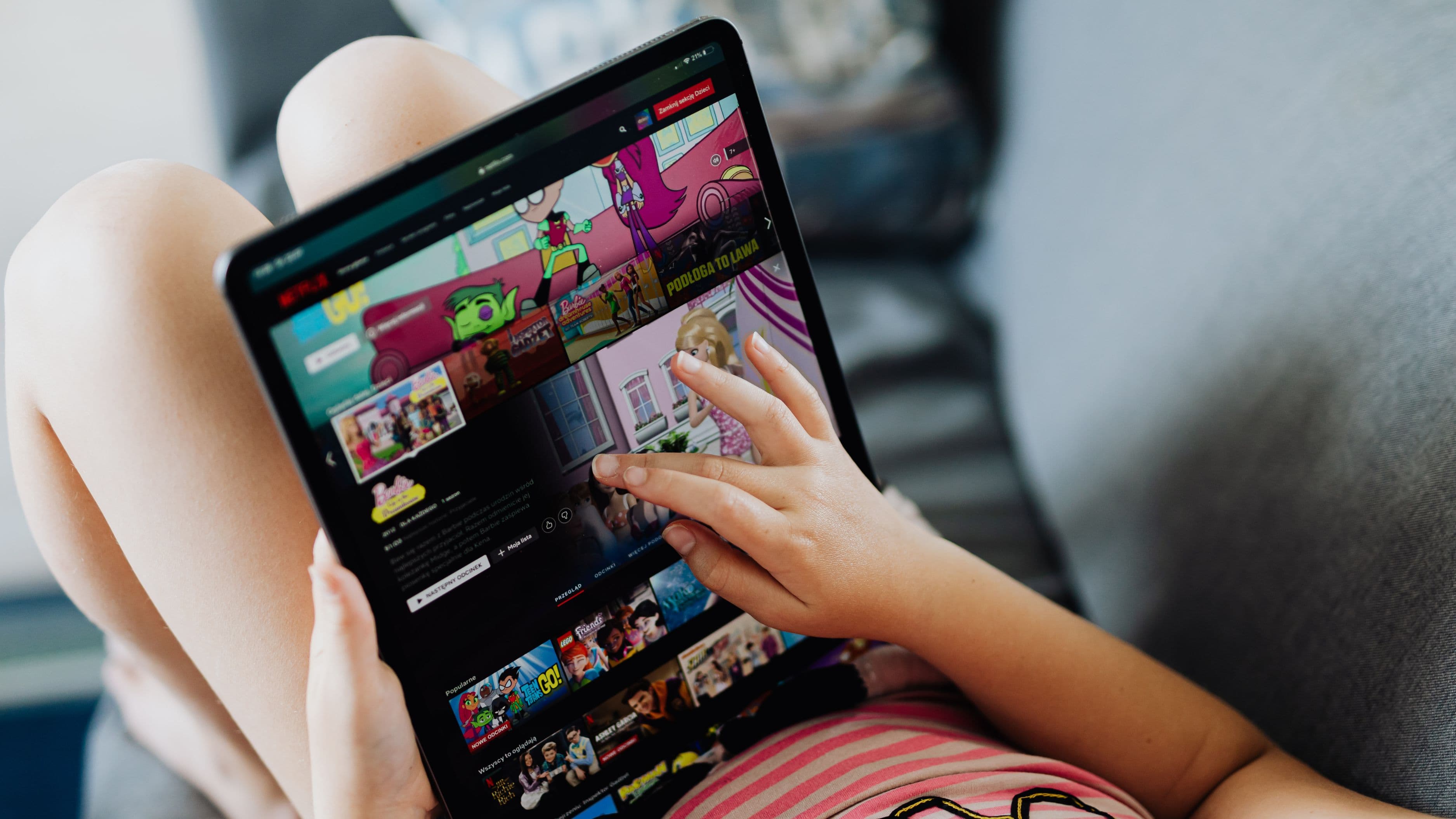
Disney+ also offers a dedicated Kids profile type that further restricts what children can see and access. Kids profiles have a simplified interface, limited search functionality, and can only access content that's been specifically approved for that profile type. The interface doesn't show any browsing categories outside the curated Kids experience.
One thing to note: Disney+ bundles with Hulu and ESPN+ through a combined subscription, but each platform's parental controls operate independently. Setting restrictions on Disney+ doesn't carry over to Hulu or ESPN+.
Hulu
Hulu's parental controls are functional but less granular than Netflix's. The platform supports Kids profiles, which operate like a closed, curated environment showing only content that Hulu has categorized as appropriate for younger viewers. When a Kids profile is set up, the interface changes significantly – adult browsing categories disappear and the layout becomes simpler and more child-friendly.
For profile-level restrictions outside of Kids mode, Hulu allows you to set a content rating limit and protect those settings with a PIN. The PIN system prevents profile switching or settings changes by anyone who doesn't know the code.
Where Hulu's controls are more limited is in title-level restrictions. Unlike Netflix, Hulu doesn't give you the ability to block specific shows or movies from a non-Kids profile while keeping the rest of the content at that rating accessible. If something falls within the allowed rating, it's accessible. If a particular show at a TV-PG rating concerns you but you want to keep TV-PG content generally available, you can't selectively block just that title.
Max (HBO Max)
Max has a robust parental control system given the platform's catalog, which includes a significant amount of mature HBO content alongside more family-friendly Warner Bros. and DC titles. Account holders can create up to five profiles and set individual content restrictions on each.
In the Max account settings, you can restrict a profile to content rated G, PG, PG-13, TV-Y, TV-G, TV-PG, TV-14, or below. A PIN can be required to change these settings or to access content above the restricted rating. Max also supports a dedicated Kids mode profile with a simplified interface and automatic content restrictions set to child-appropriate levels.
The PIN protection on Max is worth setting up even if you don't have young children – it prevents accidental profile restriction changes if someone else uses the account. For households where older kids might try to work around restrictions by switching profiles, PIN-protecting the account settings (as opposed to just the content) is the more effective layer of protection.
Apple TV+
Apple TV+ parental controls are managed through Apple's Screen Time settings rather than through the streaming platform directly. This applies whether you're using an iPhone, iPad, Apple TV, or Mac. Screen Time lets you set content and privacy restrictions that apply to the Apple TV+ app – including setting allowed content ratings, requiring a passcode to approve purchases or changes, and limiting app usage time.
On Apple devices for children, the recommended approach is to set up a Family Sharing group through Apple's settings, then manage each child's content restrictions through their individual Screen Time settings. This affects not just Apple TV+ but all Apple services and apps, which makes it a more comprehensive family management tool than any single streaming platform's built-in controls.
The trade-off is complexity – managing Apple TV+ restrictions requires going outside the app and into system settings, which is less intuitive than a within-app controls system. But for households that are already in the Apple ecosystem, Screen Time provides centralized control that covers more than streaming alone.
Amazon Prime Video
Amazon Prime Video has a profiles-based parental control system similar to Netflix. You can create a profile with a content rating restriction (All Ages, 7+, 13+, 16+, 18+) and set a PIN to prevent changes or access to higher-rated content.
Amazon also has a dedicated Amazon Kids feature (formerly Amazon FreeTime), which goes beyond standard profile restrictions. Amazon Kids creates a curated environment with pre-approved child-appropriate content and integrates with Amazon Kids+ (a subscription service) for additional educational content. If you have a Fire tablet or Echo device in the house, Amazon Kids extends to those platforms as well.
For standard Prime Video profile controls, the same profile-switching limitation applies as on Netflix – if a child has access to an unrestricted profile, the restrictions on their own profile don't prevent them from switching. PIN-protecting your own profile is the reliable solution.
What Parental Controls Can't Do
Parental controls on streaming platforms are solid for managing what's accessible within each service. What they don't cover:
They don't restrict other apps on a shared device. If your child is using a tablet with Netflix controlled, but also has a browser or YouTube app, those require their own separate restrictions set at the device or operating system level.
They don't manage screen time. None of the major streaming platforms have built-in screen time limits. For that, you need device-level parental controls through iOS Screen Time, Android Family Link, or similar.
They don't guarantee content filtering within an allowed rating. Rating systems aren't perfect, and content that technically falls within a PG or TV-G rating may still contain elements you'd prefer your child not to see. Profile restriction narrows the range but isn't a substitute for knowing what your child is watching.
Password sharing limitations also matter here. If your child knows your account password, profile-level restrictions can be worked around by accessing an unrestricted profile. Most platforms now allow you to set a separate PIN for account settings, which is the more reliable layer of protection than relying on your child not knowing the account password.
Common Mistakes to Avoid
Not PIN-protecting your own profile is probably the most common oversight. Restricting your child's profile but leaving your own unlocked just means they switch profiles – problem solved from their perspective.
Setting restrictions in the app rather than in account settings on some platforms can mean they don't persist. Netflix parental control changes must be made on the website, not the app, for them to apply correctly.
Assuming the Kids profile covers everything on the platform. Kids profiles on most services show a curated selection, not the entire catalog filtered to age-appropriate content. Some titles that would technically pass the age restriction may simply not be available in the Kids interface, which means older children on a standard restricted profile might still encounter content a Kids profile would filter out.
Forgetting to review settings when a family member adds a new service or device. If you set up parental controls on your TV but a new Fire Stick or Roku gets added to the household, those controls need to be configured fresh on the new device.
FAQ
Can parental controls be bypassed? Most platform-level parental controls can be worked around by a tech-savvy child who knows the account password or discovers how to switch profiles. PIN protection on your own profile and on account settings is the most reliable safeguard. For younger children, device-level controls (iOS Screen Time, Google Family Link) add an additional layer that's harder to circumvent.
Do parental controls work on all devices? Yes, within the platform's apps on supported devices. Profile restrictions set in your account apply wherever you log into that account. However, some features – like Netflix's profile PINs – need to be set up through the website first, not through the app.
Are there third-party parental control tools that work alongside streaming services? Yes. Router-level parental controls (available on many home routers and through services like Circle) can restrict internet access by device or time period, independent of any platform's built-in controls. These are useful for managing screen time more broadly or blocking specific platforms entirely during certain hours.
How do I set up parental controls if I'm new to a platform? Go to your account settings on the platform's website (not the app, for most platforms), find the profile management or parental controls section, set the content rating restriction, and enable a PIN. Each platform's help documentation covers the exact steps and is the most reliable source for current UI layouts.
📚 Sources
Netflix – How to Use Parental Controls: https://help.netflix.com/en/node/264
Disney+ – Parental Controls Help: https://help.disneyplus.com/csp?id=csp_article_content&sys_kb_id=parentalcontrols
Hulu – Set Up Parental Controls and Kids Profiles: https://help.hulu.com/s/article/kids-parental-controls
Max – Parental Controls and Profiles: https://help.max.com/us/Answer/Detail/000001350
Apple – Screen Time and Family Sharing: https://support.apple.com/en-us/HT201304
Amazon – Amazon Kids and Prime Video Parental Controls: https://www.amazon.com/b?node=18021386011
Common Sense Media – Guide to Parental Controls on Streaming Services: https://www.commonsensemedia.org/articles/parents-ultimate-guide-to-parental-controls