
This guide walks you through the practical steps to get more out of the connection you already have, in the order that makes the most difference.
First: Understand What Streaming Actually Needs
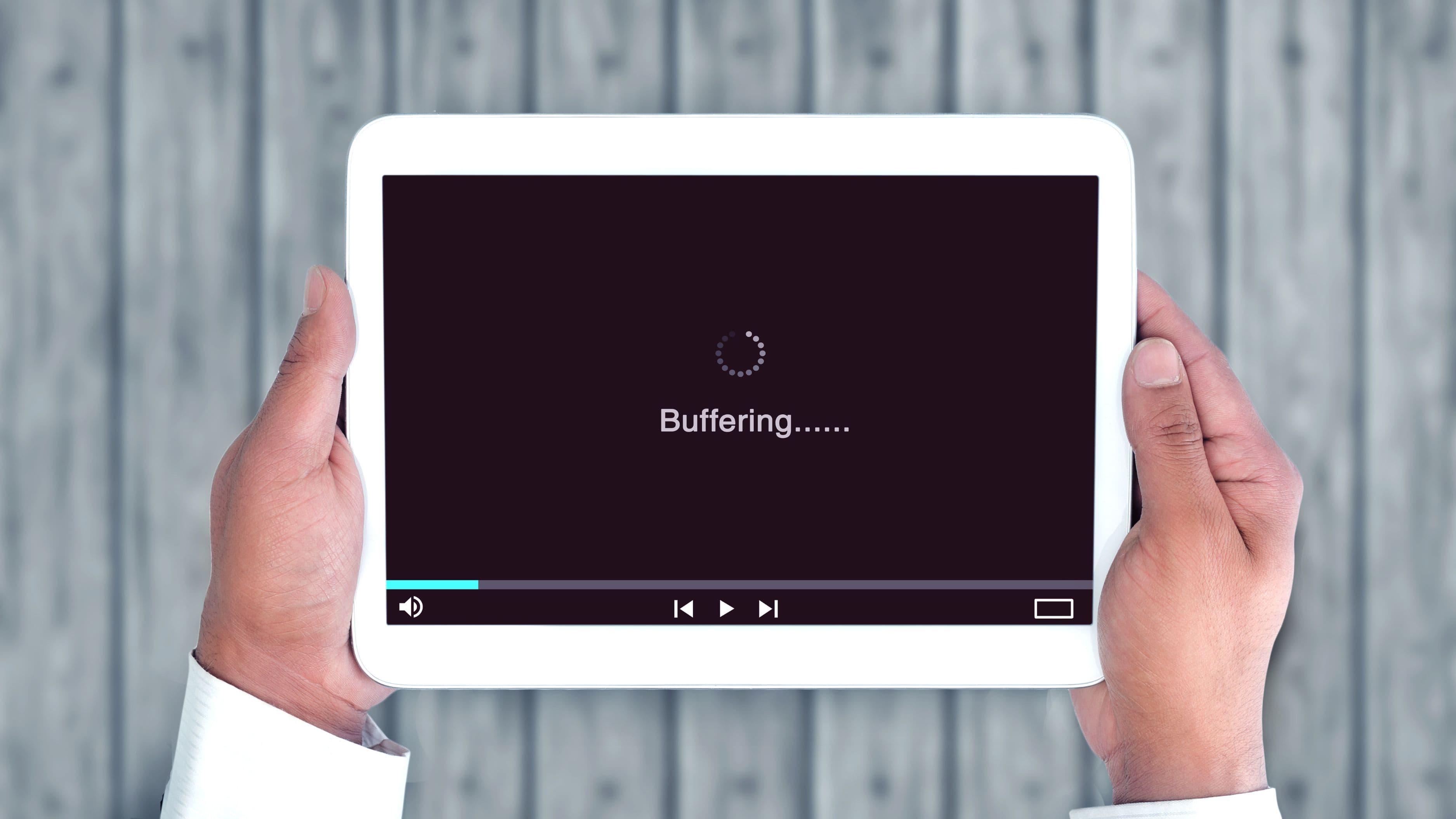
Before you change anything, it helps to know what you're working toward. Streaming quality depends on two things: consistent bandwidth and low latency. Bandwidth is the amount of data that can flow through your connection at once; latency is the delay between your device requesting data and receiving it. Buffering happens when bandwidth drops too low or latency spikes too high during a stream.
Netflix recommends 15 Mbps for 4K HDR streaming per device, and around 5 Mbps for HD. But that assumes those speeds are reaching your device reliably, not just leaving your router. A 200 Mbps internet plan means very little if your device is only receiving 20 Mbps due to interference, distance from the router, or congestion from other devices. Speed at the router and speed at your streaming device are two very different numbers, and the gap between them is where most problems live.
Running a speed test directly on your streaming device – not on your phone or a laptop near the router – is the single most useful diagnostic step you can take. Apps like Speedtest by Ookla are available on most smart TVs and streaming sticks. If the speed at your streaming device is significantly lower than what your plan provides, the Wi-Fi signal is the bottleneck.
Step 1: Position Your Router Better
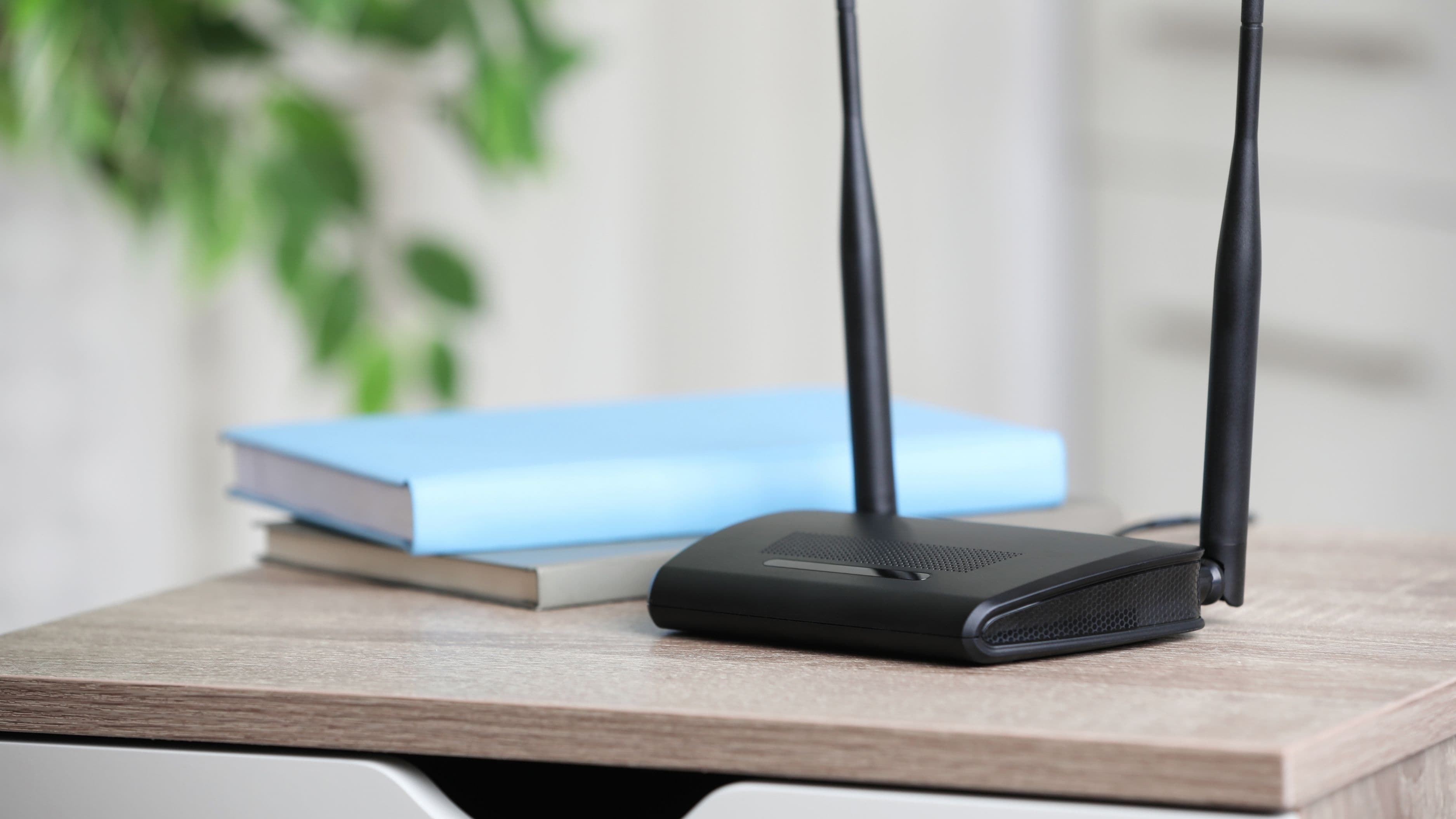
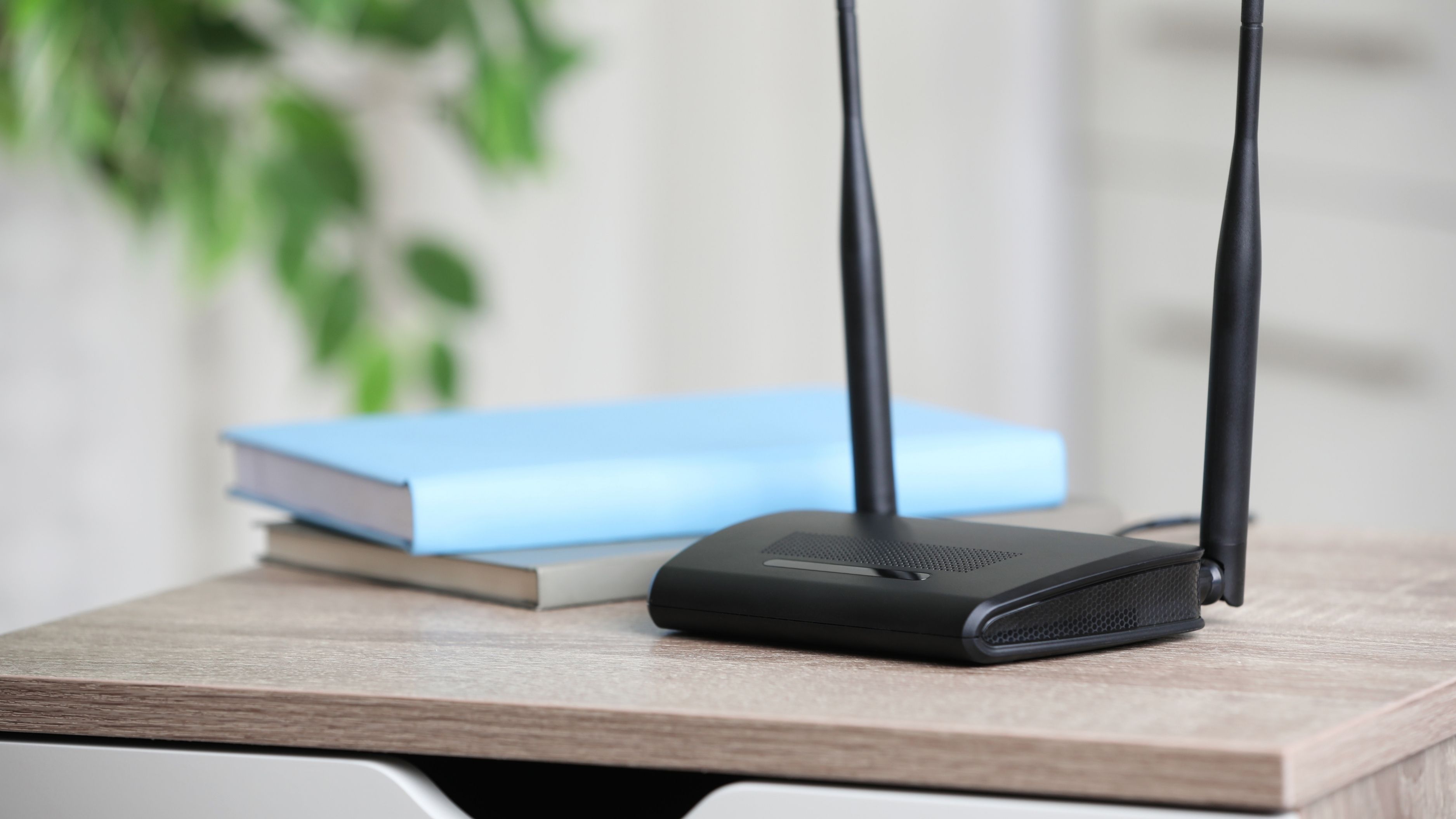
Router placement is the most underestimated factor in home Wi-Fi performance, and it's also the most fixable one at zero cost. Most people put their router wherever the cable enters the house – often in a corner, behind a piece of furniture, in a closet, or at ground level near the floor. All of those are suboptimal positions that reduce the range and quality of your signal.
Wi-Fi signals travel outward in all directions from the router, including downward. The best position for a router is elevated, central, and out in the open – not tucked away or surrounded by walls. If you can move it to a central location in your home, even a few meters closer to where you most often stream, the difference in signal strength can be significant.
Physical obstacles matter more than most people expect. Concrete and brick walls reduce signal strength substantially. Metal objects – filing cabinets, refrigerators, large appliances – can block or reflect Wi-Fi signals in disruptive ways. Water absorbs Wi-Fi signals, which is why rooms near water tanks or aquariums often have poor coverage. Keeping your router away from other electronics that operate on similar frequencies – microwaves, cordless phones, baby monitors – also reduces interference.
If moving the router isn't possible due to where the cable comes in, a Wi-Fi extender or mesh node at the halfway point between your router and your streaming device can significantly improve the signal your TV or streaming stick receives.
Step 2: Switch to the Right Wi-Fi Band
Most modern routers broadcast on two frequency bands: 2.4 GHz and 5 GHz. Many devices connect automatically, but understanding which band does what helps you make a better choice manually.
The 2.4 GHz band travels farther and penetrates walls better, but it's congested. Most neighboring Wi-Fi networks, microwaves, Bluetooth devices, and baby monitors also operate on 2.4 GHz, which means it's often crowded with interference. The 5 GHz band is faster and less congested, but it has shorter range and doesn't pass through walls as well.
For a streaming device that's in the same room as your router or in an adjacent room, connecting to the 5 GHz band almost always gives you better, more consistent speeds. For devices that are farther away – in another part of the house, on a different floor – the 2.4 GHz band may provide a more reliable connection despite being slower, because the signal actually reaches the device.
If your router broadcasts both bands with the same network name, you can create separate names for each (such as "HomeNetwork_2.4G" and "HomeNetwork_5G") in your router settings and connect your streaming devices to whichever is more appropriate for their location. This small change can meaningfully improve streaming consistency.
Step 3: Prioritize Streaming Devices With QoS
Quality of Service (QoS) is a router feature that lets you tell your network which devices or types of traffic should get priority when bandwidth is limited. Most mid-range and higher routers have this feature in their admin settings, and enabling it for your streaming devices ensures they get bandwidth ahead of background app updates, file downloads, and less time-sensitive traffic.
To access your router's settings, type its IP address into a browser – typically 192.168.1.1 or 192.168.0.1 – and log in with your admin credentials (often printed on the router itself). Look for QoS settings under "Advanced," "Traffic Management," or similar. You can usually assign priority by device (using the MAC address of your streaming device) or by traffic type (video streaming generally).
This won't increase your total bandwidth, but it ensures that when multiple things are competing for connection – someone downloading a game update in the background while you're watching – the streaming traffic doesn't lose that competition. On a household network with several active users and devices, QoS can make a noticeable difference to streaming smoothness without any hardware investment.
Step 4: Reduce Network Congestion
Every device connected to your network uses some bandwidth, even when it's not obviously doing anything. Smartphones update apps in the background. Smart home devices communicate constantly. Laptops sync files to the cloud. Gaming consoles download updates automatically. All of this background traffic competes with your streaming device, and during periods of peak use, it adds up.
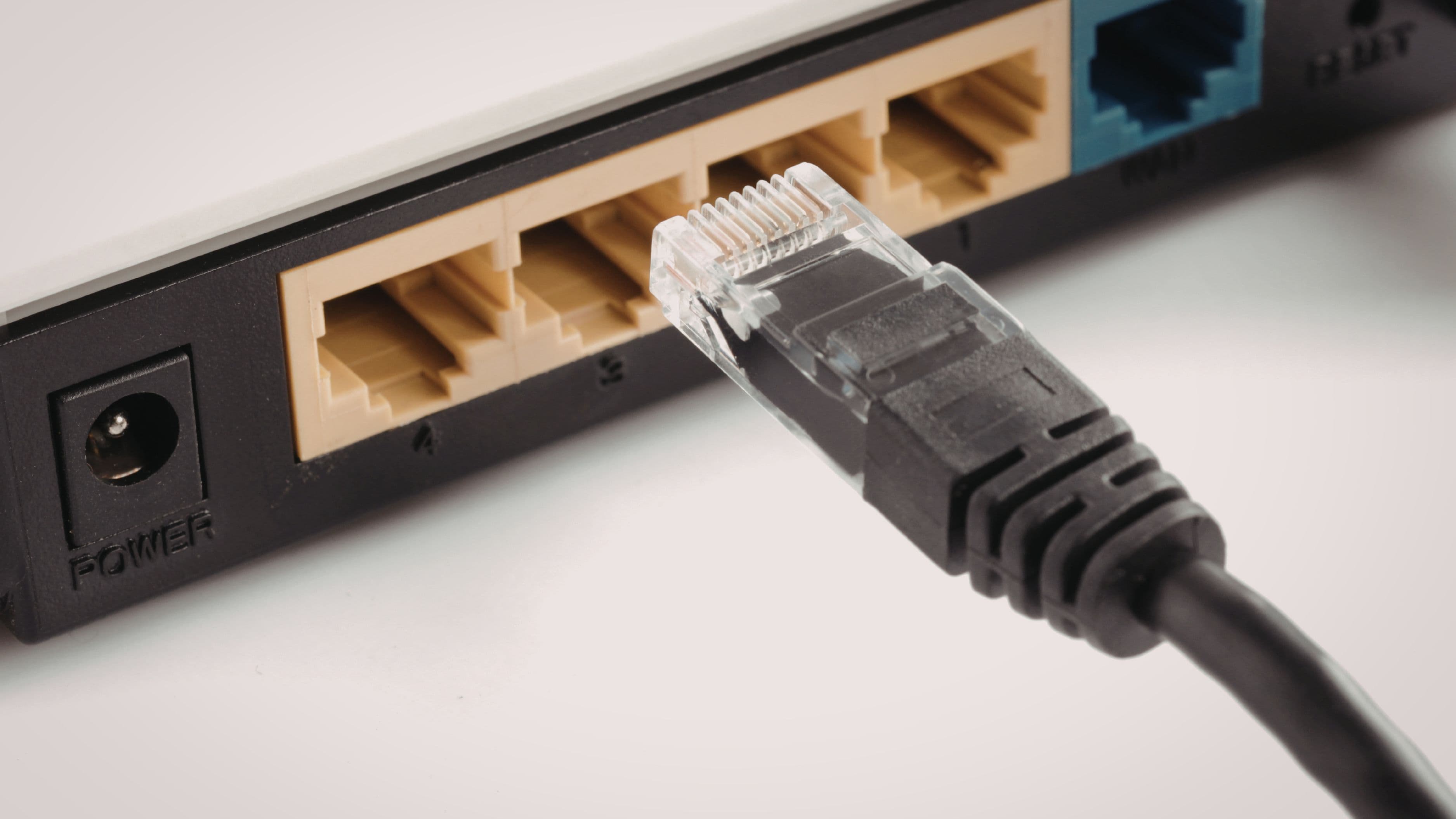
A few practical ways to reduce congestion: schedule large downloads and updates for off-peak hours (overnight is ideal); disable automatic updates on gaming consoles or set them to run only on a schedule; connect devices that don't need Wi-Fi mobility – desktop computers, smart TVs, consoles – to your router via ethernet cable instead of Wi-Fi, removing them from the wireless network entirely.
Ethernet connections are faster, more stable, and more reliable than Wi-Fi for stationary devices, and every device you move off Wi-Fi frees up bandwidth and reduces congestion for the devices that actually need wireless.
It's also worth periodically checking which devices are connected to your network and removing any that shouldn't be there – old devices you no longer use, neighbors who may still be connected from a previous network password, or unknown connections that could indicate an unauthorized user.
Step 5: Restart and Update Your Router
This one sounds obvious, but a remarkable number of streaming problems are solved by simply restarting the router. Routers accumulate cached data, manage many simultaneous connections, and occasionally get into degraded states where performance drops significantly. A full power cycle – unplugging for 30 seconds and then plugging back in – clears that state and often restores performance.
If you can't remember the last time you restarted your router, do it now. And consider setting a monthly reminder to do it again – a simple habit that prevents the slow degradation that most people notice as "my internet has been acting up lately."
Router firmware updates are equally important and equally ignored. Manufacturers regularly release firmware updates that fix performance bugs, improve security, and sometimes specifically address Wi-Fi stability issues. Check your router manufacturer's website or your router's admin panel for available firmware updates. Many newer routers update automatically, but older ones require manual updates.
Step 6: Upgrade Your Equipment If Needed
If you've worked through the steps above and streaming quality is still inconsistent, the issue may be that your router is simply too old or too limited for your current needs. Router hardware degrades over time, and a router from five or more years ago may not handle the number of devices or the streaming demands of a modern household well.
If your router is more than five years old, or if you're using the generic router provided by your ISP rather than a purchased router, upgrading is worth considering. A mid-range Wi-Fi 6 router ($100–$200) provides significantly better performance than older Wi-Fi 5 hardware, particularly in households with many connected devices, because Wi-Fi 6 is designed to handle congestion from multiple simultaneous connections more efficiently.
For larger homes or homes with thick walls and multiple floors, a mesh Wi-Fi system is a more effective solution than a single router plus extenders. Mesh systems use multiple nodes that communicate with each other to create a unified, seamless network throughout your home. Mid-range mesh systems like the TP-Link Deco or Eero Pro 6 run $150–$300 for a two or three-node kit and are significantly better at maintaining consistent speeds in every room than a single router trying to cover the same space. The improvement in streaming reliability for devices in distant rooms is often dramatic.
Common Mistakes to Avoid
Blaming your internet plan first. Most streaming problems are not caused by insufficient internet speeds – they're caused by the signal not reaching the streaming device effectively. Upgrading your plan won't help if the bottleneck is inside your home.
Using Wi-Fi for devices that could use ethernet. Smart TVs, streaming boxes, and gaming consoles that are near your router or TV stand almost always perform better on a wired connection. A $10 ethernet cable is more reliable than even a good Wi-Fi signal for a stationary device.
Placing the router on the floor or behind furniture. Floor-level placement and physical obstructions significantly reduce effective range. Moving the router higher and into the open makes a real difference.
Ignoring router age. An old router is often the root cause of persistent streaming issues in homes where everything else looks fine. If your router is more than five years old and you've exhausted other options, replacing it is the most cost-effective remaining fix.
Forgetting about interference. If your router is near a microwave, a cordless phone, or a dense cluster of other electronics, try relocating it. Interference from other devices operating on the same frequency is a common and frequently overlooked cause of intermittent streaming problems.
FAQ
How fast does my internet plan need to be for smooth 4K streaming? For a single 4K stream, Netflix recommends 15 Mbps, Disney+ recommends 25 Mbps, and YouTube recommends 20 Mbps. If multiple people are streaming simultaneously or if you have many connected devices, you'll want more headroom. The key is that those speeds need to actually reach your streaming device – not just leave your router.
Will a Wi-Fi extender help? A Wi-Fi extender can help bridge dead zones in your home, but it has limitations. Most extenders create a separate network that your device needs to switch to manually, and they typically provide lower speeds than your main router. If you're going to invest in better coverage, a mesh system generally provides a more seamless and consistent experience than a basic extender.
Is ethernet really that much better than Wi-Fi for streaming? Yes, for stationary devices. Ethernet eliminates wireless interference, is not affected by physical obstacles or distance from the router, and provides consistent speeds without the variability of Wi-Fi. A wired connection to your smart TV or streaming device is the single most reliable improvement you can make if the device is close enough to the router to run a cable.
How often should I restart my router? Once a month is a good habit for most home routers. More often if you notice performance degrading over time, or less often if you're using a newer, more robust router that manages its own memory effectively. Your ISP's rental router often benefits from more frequent restarts than a higher-quality purchased router.
What is Wi-Fi 6 and do I need it? Wi-Fi 6 (802.11ax) is the current Wi-Fi standard, designed to handle multiple simultaneous device connections more efficiently than Wi-Fi 5. It's faster in ideal conditions and significantly more consistent in congested environments – like a home with many connected devices. If your router is more than three or four years old and you're adding more devices, Wi-Fi 6 is worth the upgrade.
📚 Sources
Netflix – Internet Connection Speed Recommendations: https://help.netflix.com/en/node/306
Google – Improve Chromecast or Google TV Performance: https://support.google.com/chromecast/answer/6043549
FCC – Broadband Speed Guide: https://www.fcc.gov/consumers/guides/broadband-speed-guide
Wi-Fi Alliance – Wi-Fi 6 Explained: https://www.wi-fi.org/discover-wi-fi/wi-fi-6
Speedtest by Ookla – Internet Speed Test: https://www.speedtest.net/
Consumer Reports – How to Improve Your Wi-Fi Signal: https://www.consumerreports.org/electronics-computers/wireless-routers/how-to-improve-your-wifi-signal-a1065004625/