
This isn't a "they're all great, pick whichever you like" answer. Each connection type has a clear best use case, and picking the wrong one leads to frustrating experiences that are completely avoidable. Here's a straightforward breakdown of how they compare.
The Quick Answer
If you want the most reliable, highest-quality connection with zero dependencies: HDMI. If you're on Android or use Google services and want wireless convenience: Chromecast. If you're in the Apple ecosystem and want seamless device-to-TV casting: AirPlay. Everything below is the explanation.
What Each Connection Actually Is
Before comparing them, it helps to be clear on what you're actually dealing with.
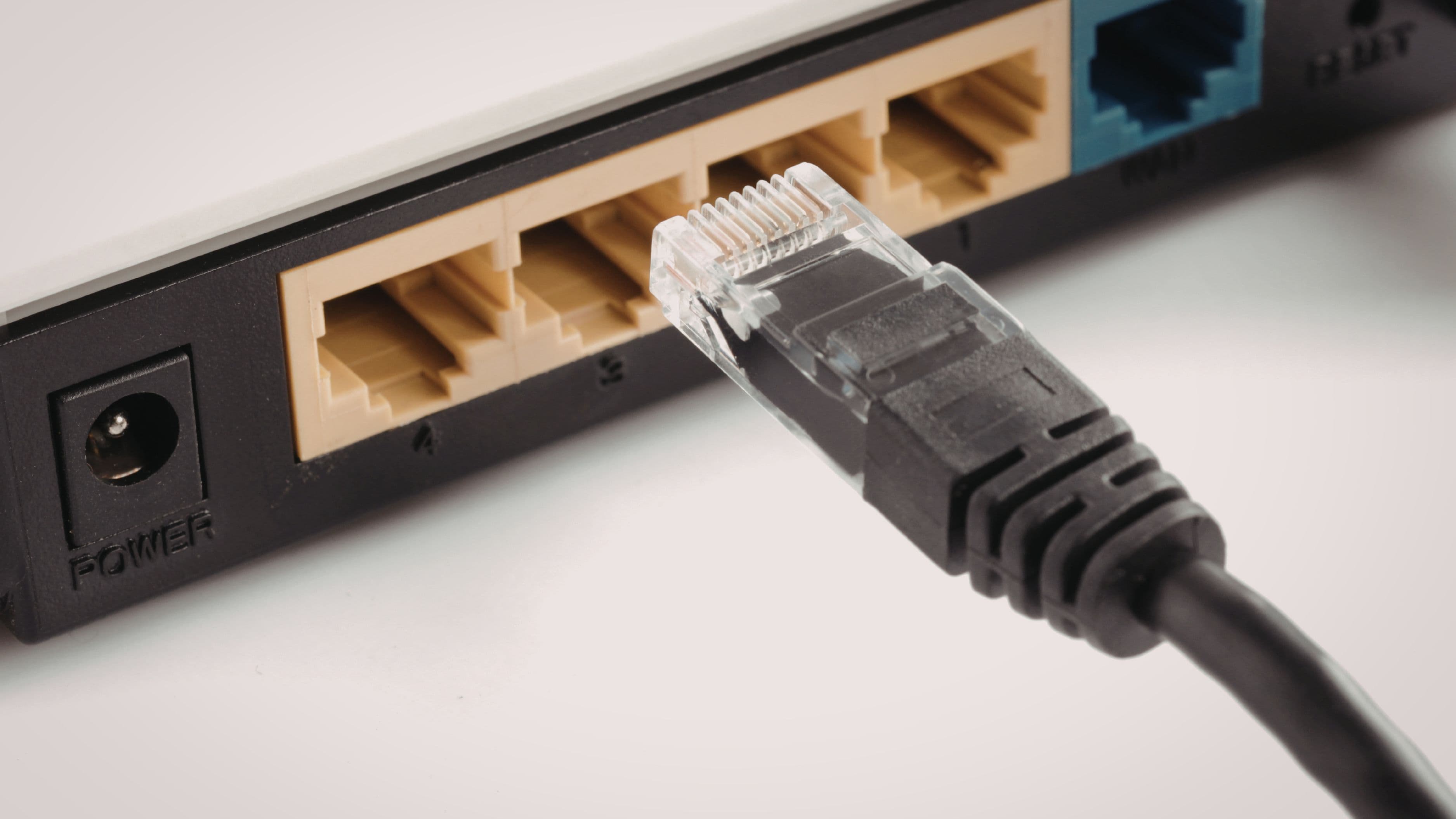
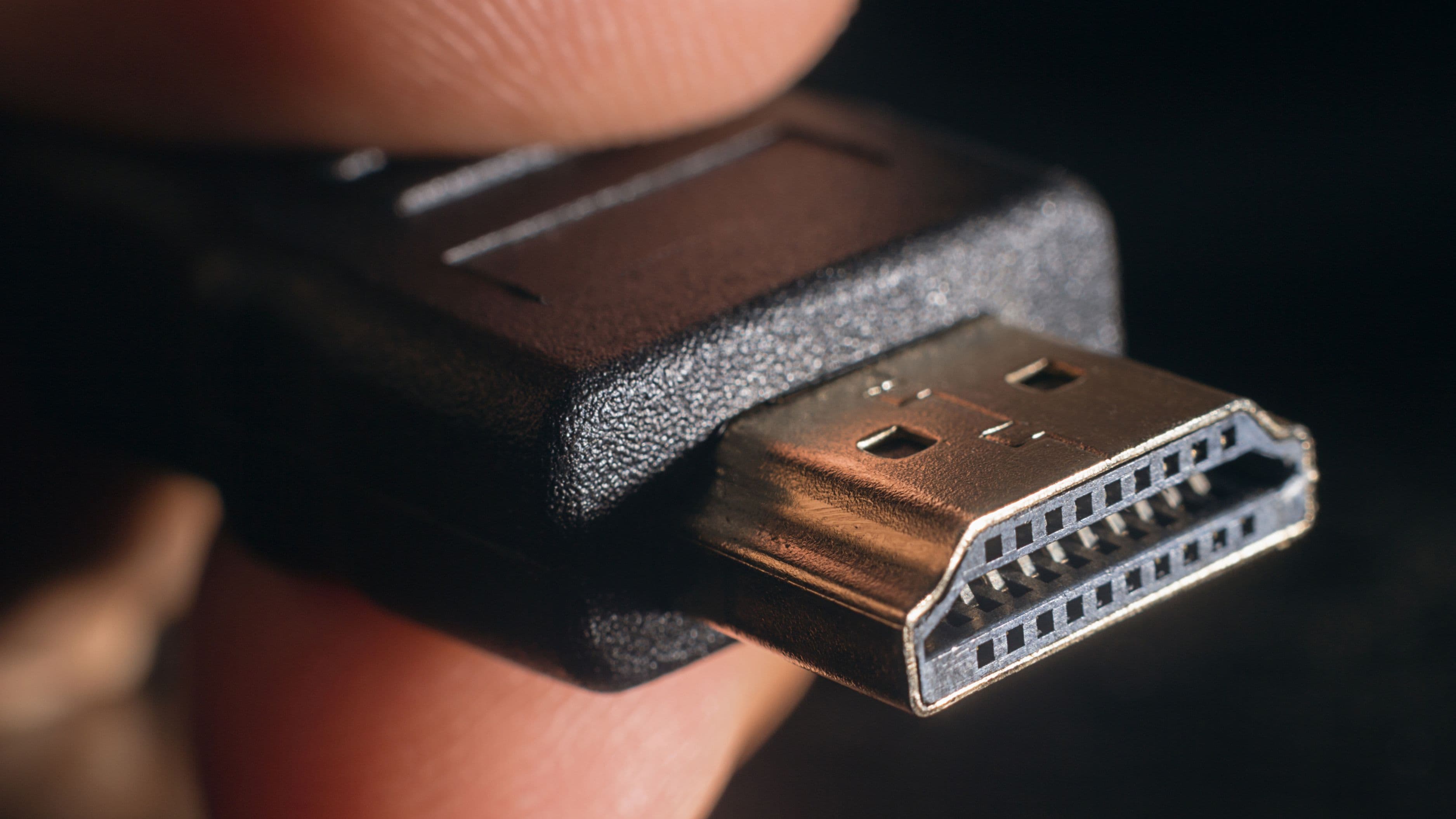
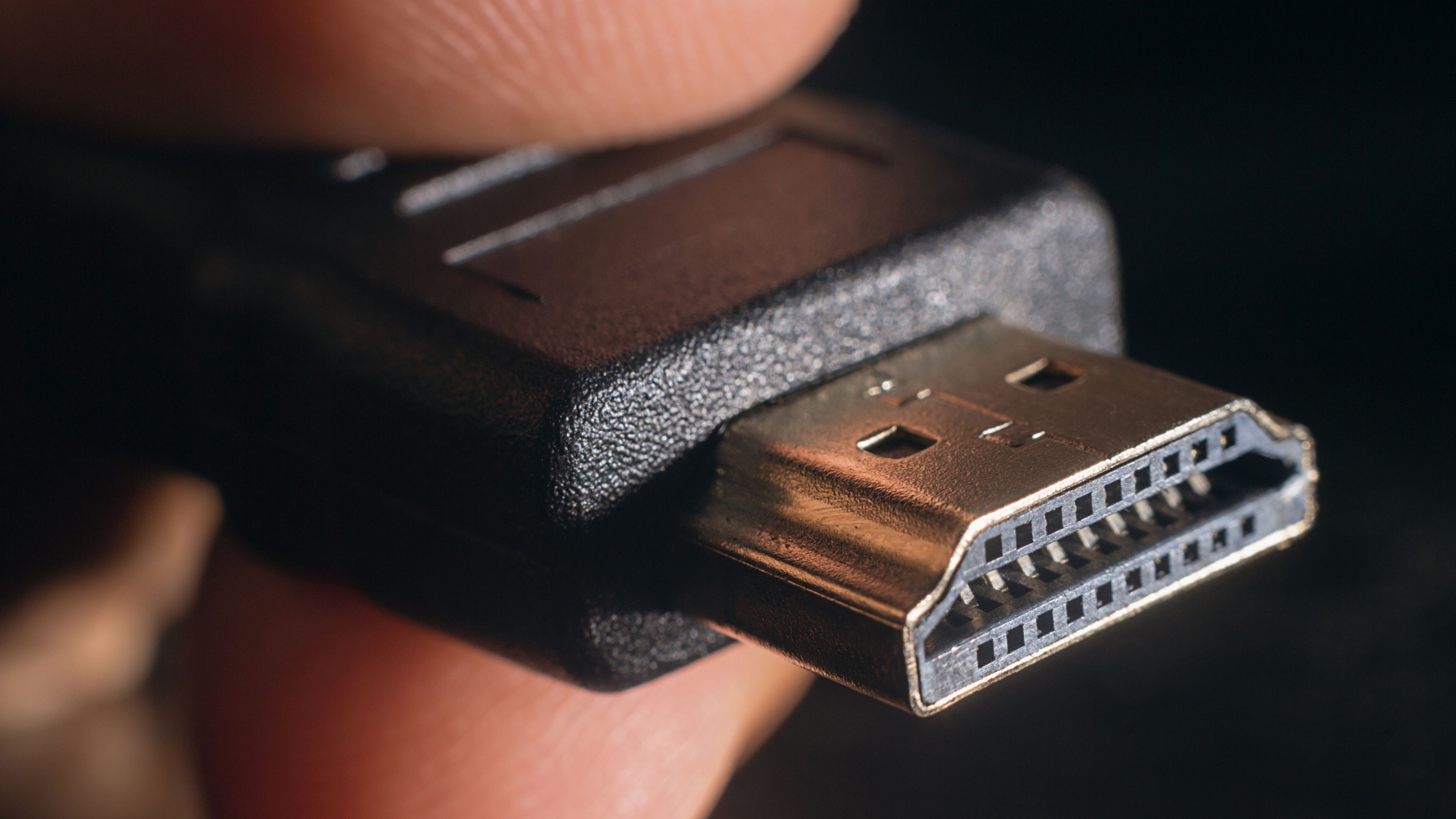
HDMI is a physical cable connection. You plug one end into your laptop, phone (via adapter), or streaming device and the other end directly into your TV's HDMI port. The signal travels over the wire – no Wi-Fi, no apps, no accounts required. It's the simplest and most universal method available.
Chromecast is Google's wireless casting protocol, built into Chromecast hardware devices and supported by a wide range of smart TVs under the name "Google Cast." Instead of the video playing on your phone and being mirrored to the TV, Chromecast works differently: your phone tells the TV what to stream, and the TV fetches and plays it directly from the internet. Your phone becomes a remote control rather than the source.
AirPlay is Apple's wireless streaming protocol. It works similarly to Chromecast in principle but is exclusive to Apple devices – iPhone, iPad, Mac, and iPod Touch. AirPlay 2 supports a broader range of TVs (Samsung, LG, Sony, Vizio, and others have built-in AirPlay 2 support) and allows multi-room audio syncing across AirPlay-compatible speakers.
HDMI: The Reliable Workhorse
HDMI's biggest strength is its simplicity. There's no network required, no app to install, no account to sign in to, and no compatibility questions beyond "does this device have an HDMI port." You plug in the cable and what's on your screen appears on the TV at full quality.
For laptops, this is still the gold standard for presentations, gaming, or watching anything stored locally – a downloaded film, a video file, a slideshow. The signal is direct and the latency is essentially zero, which matters for gaming in particular. HDMI 2.1 supports up to 10K resolution and 120Hz refresh rates, making it future-proof for high-performance setups in a way that wireless methods aren't.
For phones and tablets, HDMI requires an adapter – USB-C to HDMI for most modern Android devices and Macs, Lightning to HDMI for older iPhones, and USB-C to HDMI for iPads with USB-C ports. Not all USB-C ports support video output (it depends on the device), so it's worth checking your specific phone's spec sheet before buying an adapter. iPhones with Lightning connectors using Apple's official adapter also support AirPlay natively, so wireless is often more convenient in that scenario.
The obvious downside is the cable itself. You're tethered to the TV, which limits where you can sit, creates a cable management issue, and requires the right adapter for whatever device you're connecting. For a living room couch setup or a phone, the inconvenience is real.
Best for: Laptop-to-TV connections, local video files, gaming, presentations, any situation where reliability matters more than convenience.
Limitations: Requires a cable and possibly an adapter; less convenient for phone/tablet use; tethers you to the TV.
Chromecast: The Smart Wireless Option
Chromecast's key advantage over simple screen mirroring is that it offloads the streaming work to the TV. When you cast Netflix from your phone using Chromecast, your phone sends a command to the TV saying "play this Netflix show." The TV then streams it directly from Netflix's servers. Your phone can go in your pocket, take calls, or run other apps without interrupting what's playing on the TV.
This makes it significantly more efficient than screen mirroring. Screen mirroring plays video on your phone, encodes it, sends it wirelessly to the TV, and decodes it again – all in real time, which drains your phone battery fast and introduces latency. Chromecast bypasses all of that for supported apps.
The supported app list is extensive: Netflix, YouTube, Disney+, Hulu, Spotify, HBO Max, Plex, Tubi, and hundreds more all support Google Cast natively. If the app has a cast button (the rectangle with a Wi-Fi symbol in the corner), it works with Chromecast. For apps that don't have native Cast support, you can still mirror your screen from an Android phone or a Chrome browser tab on a laptop – which works but uses the less efficient mirroring method.
The main dependencies are Wi-Fi and a Google account. Both your phone and the Chromecast device need to be on the same Wi-Fi network for casting to work – a detail that trips people up in hotels or guest networks where devices are isolated from each other. Setup also requires the Google Home app and a Google account, which adds a step compared to plugging in a cable.
Picture quality on Chromecast with Google TV (the current flagship device) is excellent – it supports 4K HDR and Dolby Vision – but it's dependent on your internet connection. A slow or congested network means buffering or quality drops in a way that a wired HDMI connection never does.
Best for: Android users, Google ecosystem households, casting from supported streaming apps without draining your phone, everyday wireless TV viewing.
Limitations: Requires Wi-Fi (both devices on same network), Google account for setup, quality depends on internet speed, less seamless outside supported apps.
AirPlay: The Apple Ecosystem Winner
AirPlay's main advantage is how well it integrates with the Apple device experience. If you're watching something on your iPhone and want to throw it to the TV, you swipe down for Control Center, tap the AirPlay icon, and select your TV. That's it – no separate app, no extra steps. For Apple users, it's genuinely the smoothest wireless experience available.
AirPlay 2 expanded TV compatibility significantly. Major TV brands including Samsung (2018 and newer), LG (2019 and newer), Sony (2019 and newer), and Vizio support AirPlay 2 natively, meaning you don't need an Apple TV device to use it. If your TV is a supported model, AirPlay works directly. Apple TV (the hardware box) extends AirPlay to any TV with an HDMI port, adds HomeKit integration, and is the best choice for households fully invested in the Apple ecosystem.
Like Chromecast, AirPlay can work in two modes. For supported apps (Netflix, Apple TV+, Disney+, Hulu, and many others), AirPlay hands off playback to the TV and your phone is freed up. For apps without native AirPlay support, it falls back to screen mirroring from your iPhone or Mac, which mirrors everything on your screen – notifications included, if you're not careful.
The hard limitation is Apple-only. AirPlay doesn't work from Android devices or Windows computers. If your household mixes Apple and non-Apple devices, AirPlay only solves part of the problem. And while third-party AirPlay receivers exist for Windows (like AirServer), they're add-on software rather than native support.
Audio quality on AirPlay is genuinely strong – it supports lossless audio and spatial audio for supported content, which matters if you're running the TV audio through a quality soundbar or receiver. Chromecast's audio handling is good but doesn't match AirPlay's ceiling for high-fidelity audio setups.
Best for: iPhone and iPad users, Mac-to-TV connections, Apple ecosystem households, high-quality audio setups.
Limitations: Apple devices only, requires Wi-Fi, TV must support AirPlay 2 or need an Apple TV device, quality depends on network.
Head-to-Head: How They Compare
Reliability: HDMI wins outright. A wired connection doesn't drop, doesn't buffer, and doesn't care about your network congestion. Chromecast and AirPlay are both reliable on a good network but introduce Wi-Fi as a variable.
Setup complexity: HDMI is the simplest – cable in, done. Chromecast requires the Google Home app and account setup on first use. AirPlay is nearly instant for Apple users since it's built into iOS/macOS with no additional app needed.
Video quality ceiling: All three can deliver 4K HDR if your TV and source support it. HDMI with the right cable and source is the most direct path. Chromecast with Google TV and AirPlay 2 both support 4K Dolby Vision – but both are limited by your internet speed for streamed content.
Device compatibility: HDMI works with virtually anything. Chromecast works with Android, iOS, and Chrome browser on any platform. AirPlay works with Apple devices only.
Convenience for phone users: Chromecast and AirPlay are both significantly more convenient than HDMI for phone use. Neither requires a cable or adapter, and both free up your phone once casting starts in supported apps.
Battery drain: Chromecast and AirPlay (when handing off playback to the TV) have minimal battery impact on your phone after casting begins. Screen mirroring via any method drains battery fast. HDMI with the phone plugged in has no battery impact at all.
Which One Should You Use?
The right answer depends on your setup and what you're trying to do.
If you're connecting a laptop to a TV for anything that requires zero lag – gaming, a presentation, watching a downloaded film – use HDMI. The cable is a minor inconvenience worth the reliability and quality ceiling.
If you're an Android user who wants to cast from your phone to the TV without a cable, Chromecast is the natural choice. It's built for that use case, the app support is wide, and it handles the work gracefully.
If you have an iPhone or iPad and your TV supports AirPlay 2 – or if you have an Apple TV – AirPlay is the most seamless option available to you. The integration is tighter than anything Chromecast offers for Apple users.
If you have a mixed household – some Apple devices, some Android – Chromecast plus a physical HDMI connection covers almost every scenario. AirPlay adds convenience for the Apple side but Chromecast fills in the gaps.
Common Mistakes to Avoid
Assuming wireless always means lower quality is outdated thinking. Both Chromecast and AirPlay support 4K HDR over a good network. The quality difference compared to HDMI becomes relevant mainly when your internet connection is slow or unreliable – on a solid network, the gap disappears.
Using screen mirroring when you could be casting is the biggest efficiency mistake wireless users make. Screen mirroring heats up your phone, drains the battery, and often looks worse because the encoding step degrades quality. If the app has a Cast or AirPlay button, use it – that's the handoff mode, and it's meaningfully better than mirroring.
Trying to use Chromecast or AirPlay on an isolated guest network is a common frustration in hotels and some offices. Both protocols require your phone and the TV/streaming device to be on the same local network. If the network separates devices (which hotel Wi-Fi often does), wireless casting won't work. HDMI is the fallback for these situations.
Buying cheap HDMI adapters for phones without checking compatibility wastes money and causes problems. Not all USB-C ports support DisplayPort Alternate Mode (the standard that enables video output). Check your phone's spec sheet – or the manufacturer's page – before buying an adapter. Samsung, Google Pixel, and most flagship Android phones support it; some mid-range phones don't.
FAQ
Can I use all three methods on the same TV?
Yes, if your TV has the right ports and supports the wireless protocols. An HDMI cable plugs into any HDMI port. Chromecast can be a separate device plugged into an HDMI port or built into a smart TV. AirPlay 2 support is built into many newer TVs and works alongside both. You can switch between them freely.
Does Chromecast work without internet?
For streaming apps, no – Chromecast requires an internet connection because the TV fetches content from the internet directly. For screen mirroring from a device on the same local network, you technically don't need internet access but you do need a local Wi-Fi network for the devices to communicate.
Is AirPlay available on non-Apple TVs?
Yes – many Samsung, LG, Sony, and Vizio TVs from 2018–2019 onward have built-in AirPlay 2 support. Check your TV's specs or settings menu under "AirPlay" to confirm. If your TV doesn't support it natively, an Apple TV box brings AirPlay to any HDMI-equipped TV.
Which has the lowest latency for gaming?
HDMI by a significant margin. Wired HDMI latency is measured in milliseconds. Chromecast and AirPlay both introduce wireless encoding and transmission delay that makes them unsuitable for gaming where input responsiveness matters.
Do I need an internet connection for HDMI?
No. HDMI is a direct physical connection between two devices. It doesn't use your network at all – which is one of its key advantages in situations with slow or no internet.
📚 Sources
Google – "Cast from Chrome to your TV" – support.google.com https://support.google.com/chromecast/answer/3228332
Apple – "Use AirPlay to stream what's on your iPhone, iPad, or iPod touch" – support.apple.com https://support.apple.com/en-us/111908
Apple – "AirPlay 2-compatible smart TVs" – support.apple.com https://support.apple.com/en-us/101605
HDMI Forum – "HDMI 2.1 Specification Overview" – hdmi.org https://www.hdmi.org/spec21sub/overview
Netflix – "Internet connection speed recommendations" – help.netflix.com https://help.netflix.com/en/node/306