
Step 1: Check Your Actual Internet Speed First
Before troubleshooting your specific device, run a quick speed test using a site like Speedtest.net, either on the same device that's buffering or on your phone connected to the same network. Most standard-definition streaming needs at least 3 Mbps, HD streaming generally needs 5-10 Mbps, and 4K streaming typically requires 25 Mbps or more, so compare your actual measured speed against what your specific streaming quality requires.
What to watch out for: if your speed test shows significantly lower results than what your internet plan advertises, this points toward a broader network issue rather than a problem specific to your streaming device, and is worth addressing at the router or provider level first.
Step 2: Restart Your Router and Device
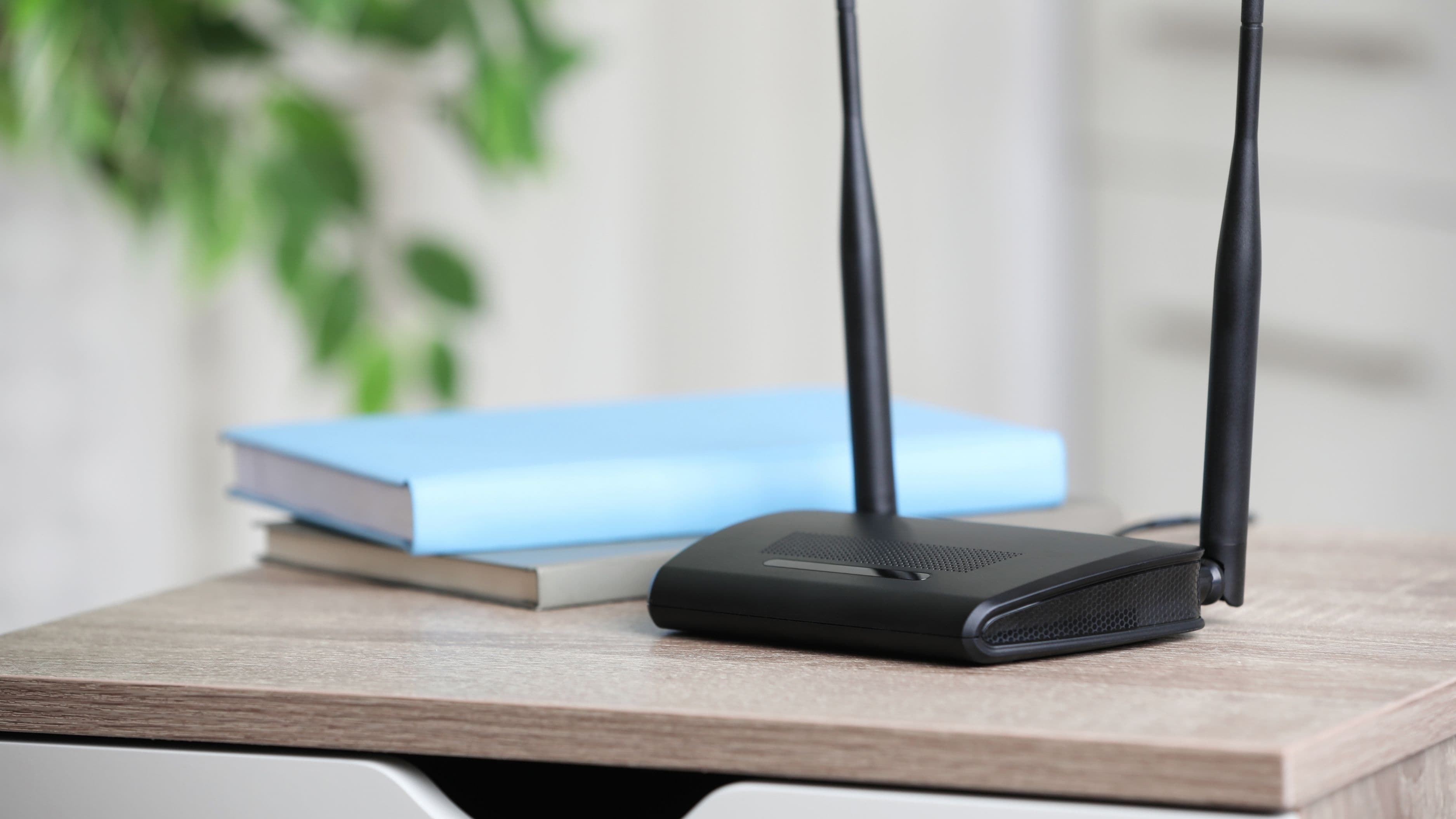
This sounds almost too simple, but a genuinely significant portion of buffering issues resolve with a basic restart, since both routers and streaming devices can accumulate minor software glitches or memory issues over extended periods of continuous use that a simple restart clears out. Unplug your router for about 30 seconds before plugging it back in, and separately restart your streaming device itself, rather than just closing and reopening the app you're using.
Realistic expectation: this resolves a surprising number of buffering issues on its own, and it's worth doing first before moving to more involved troubleshooting steps.
Step 3: Check for Network Congestion From Other Devices
If multiple devices in your home are simultaneously streaming, downloading large files, or gaming online, this shared bandwidth demand can cause buffering even when your overall internet plan should theoretically support your streaming needs. Temporarily pausing other bandwidth-heavy activity on your network while testing whether buffering improves helps confirm whether congestion is actually the underlying cause.
What to watch out for: if buffering consistently happens during specific times of day when household internet usage is highest, this is a strong signal that overall bandwidth demand, not a problem with your streaming device itself, is the actual cause.
Step 4: Move Closer to Your Router or Switch to a Wired Connection
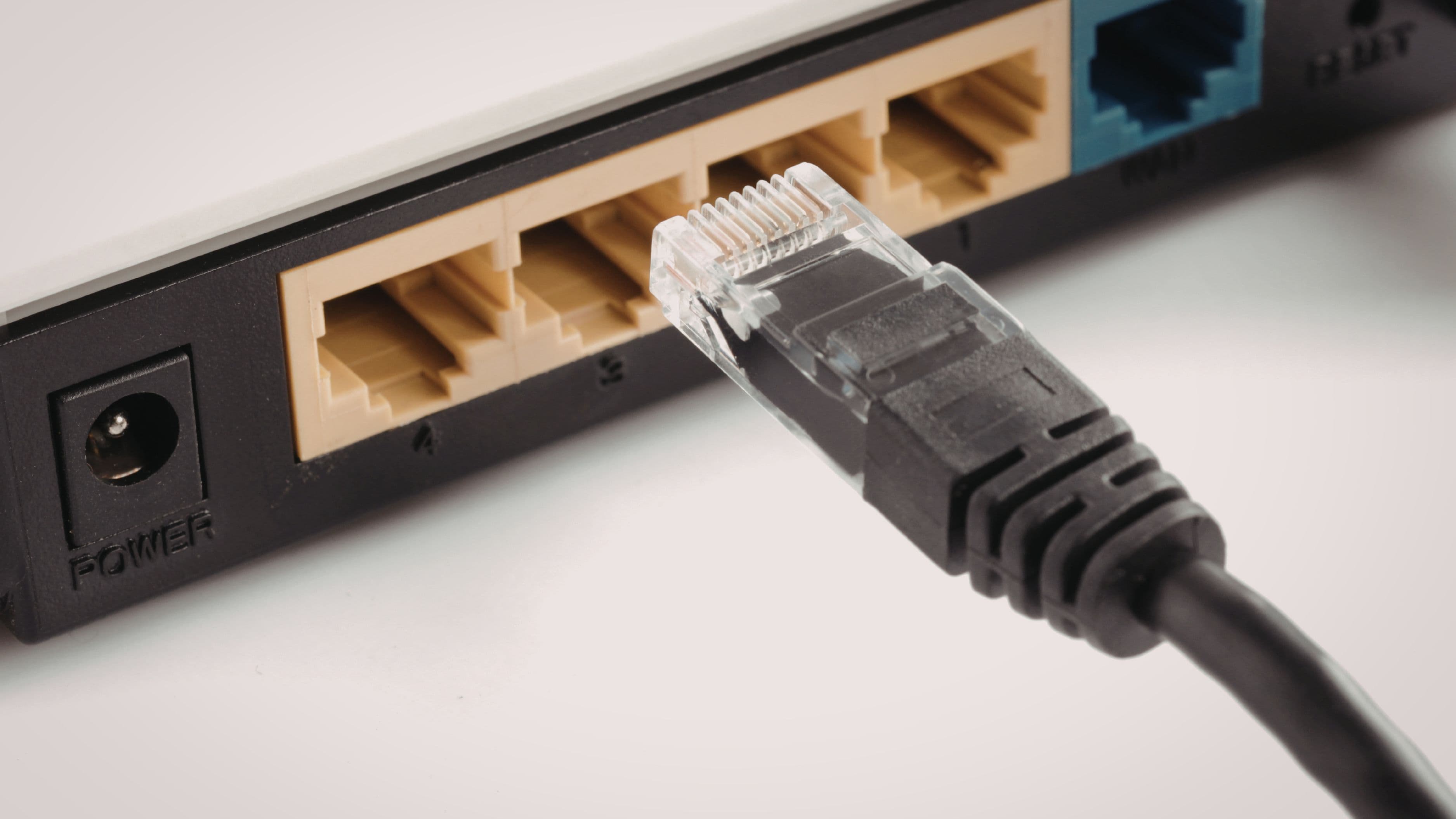
Wi-Fi signal strength degrades significantly with distance and physical obstructions like walls and floors, and a streaming device relying on a weak Wi-Fi signal is a very common, often overlooked cause of buffering. If your streaming device is far from your router, moving it closer, or better yet, connecting it directly via an ethernet cable if your device supports one, often resolves buffering issues that seemed unrelated to your device or overall internet plan.
Realistic expectation: a wired connection genuinely provides the most stable, reliable streaming experience available, and it's worth the minor inconvenience of running a cable if buffering has been a persistent, unresolved issue.
Step 5: Lower Your Streaming Quality Setting
Most streaming apps let you manually adjust video quality within their settings, and temporarily lowering this from 4K or HD down to a standard definition setting can eliminate buffering caused by your connection struggling to keep up with a higher bitrate stream. This isn't a permanent fix if your goal is consistent high-definition streaming, but it's a useful diagnostic step and a reasonable temporary workaround while addressing the underlying connection issue.
Step 6: Clear Your Streaming App's Cache
Streaming apps accumulate cached data over time, and this cache occasionally becomes corrupted or bloated in a way that causes performance issues, including buffering, independent of your actual internet connection quality. Most devices allow you to clear an individual app's cache through your device's settings menu, which is a quick, low-risk troubleshooting step worth trying if restarting your device alone didn't resolve the issue.
Step 7: Check for a Router Firmware Update
Router manufacturers periodically release firmware updates that address performance and stability issues, and an outdated router firmware version can contribute to inconsistent streaming performance over time. Check your router manufacturer's app or web interface for available updates, and apply any pending update, which is typically a straightforward, guided process built directly into your router's management tool.
Step 8: Consider Your Router's Age and Capability
If your router is several years old, it may not fully support the bandwidth demands of modern 4K streaming or multiple simultaneous connected devices, even if your actual internet plan speed should theoretically be sufficient. Older routers, particularly ones using older Wi-Fi standards, can become a genuine bottleneck as household streaming and device demands increase over time.
Cost level: replacing an aging router runs anywhere from $50 for a basic model to $200 or more for a higher-performance router supporting more devices and stronger throughput, worth considering if you've ruled out other causes and your router is several years old.
What to Avoid
Avoid assuming your streaming service itself is always at fault when buffering occurs, since the vast majority of buffering issues trace back to your home network or device rather than the streaming platform's own servers. Don't skip the basic restart step assuming it won't help, since it resolves a genuinely significant portion of buffering complaints on its own without needing any further troubleshooting.
FAQ
Why does buffering happen on some streaming services but not others? This can happen if a specific service's app has its own performance issue, or if that service's video quality setting is higher by default than another app you're comparing it to, using more bandwidth as a result.
Does a VPN cause buffering? It can, since routing your traffic through a VPN server adds an extra step that may reduce your effective connection speed, particularly if the VPN server you're connected to is geographically distant or experiencing heavy usage itself.
Should I upgrade my internet plan if buffering persists after trying these steps? If your speed test consistently shows results below what your streaming quality requires, even after ruling out router and device issues, upgrading your plan is a reasonable next step worth considering.
Most buffering problems come down to a manageable, predictable set of causes – connection speed, network congestion, Wi-Fi signal strength, or an aging router – and working through these systematically resolves the majority of cases without needing professional help or a costly equipment upgrade.
📚 Sources
FCC: Understanding Broadband Speed Guide – https://www.fcc.gov/consumers/guides/broadband-speed-guide
Netflix: Internet Connection Speed Recommendations – https://help.netflix.com/en/node/306
Speedtest by Ookla: How to Test Your Internet Speed – https://www.speedtest.net/