
What Dolby Atmos Actually Is (Quick Version)
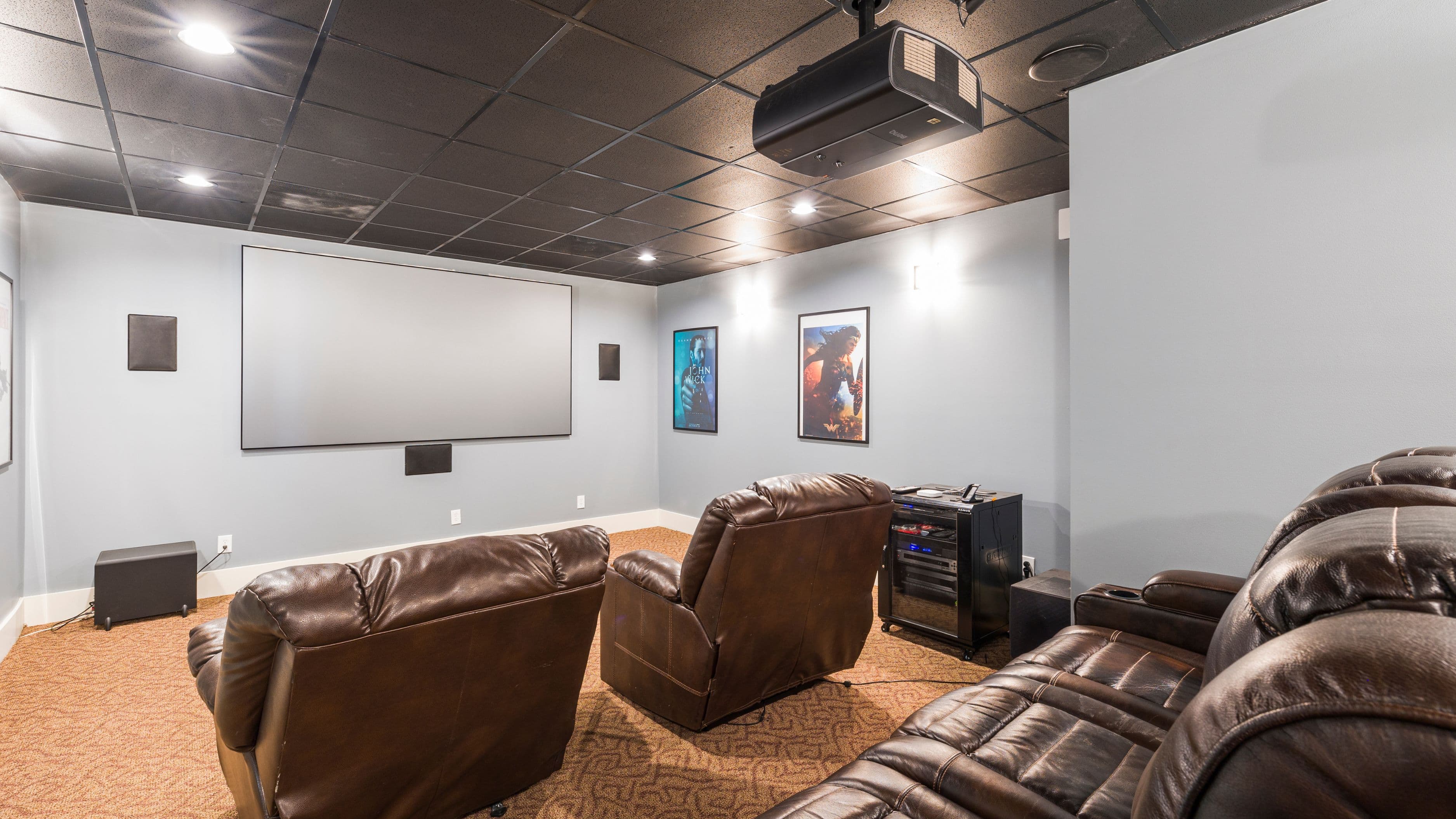
Standard surround sound works in channels – front left, front right, center, rear left, rear right, and a subwoofer. Dolby Atmos adds an object-based layer on top of that, meaning sound designers can place audio as individual objects moving through three-dimensional space, including overhead. The result is that sounds like a helicopter flying over, rain falling, or a voice coming from behind you feel more spatially accurate than traditional surround can deliver.
For streaming, this matters because an increasing number of movies, TV shows, and even music albums are mixed specifically with Atmos in mind. When your setup can decode and play it back correctly, the difference is noticeable – particularly in action sequences, nature documentaries, and anything with a theatrical-quality sound mix.
What You'll Need Before You Start
Getting Dolby Atmos working for streaming requires that three things align: your source device, your audio equipment, and your streaming service subscription. A weak link in any one of these breaks the chain.
A streaming device or smart TV that supports Atmos passthrough. This includes Apple TV 4K, Amazon Fire TV Stick 4K Max, Roku Ultra, NVIDIA Shield TV, and most current-generation smart TVs. If you're using a game console, both PlayStation 5 and Xbox Series X support Dolby Atmos passthrough. Older streaming sticks and entry-level devices often don't support Atmos at all, so this is worth confirming before anything else.
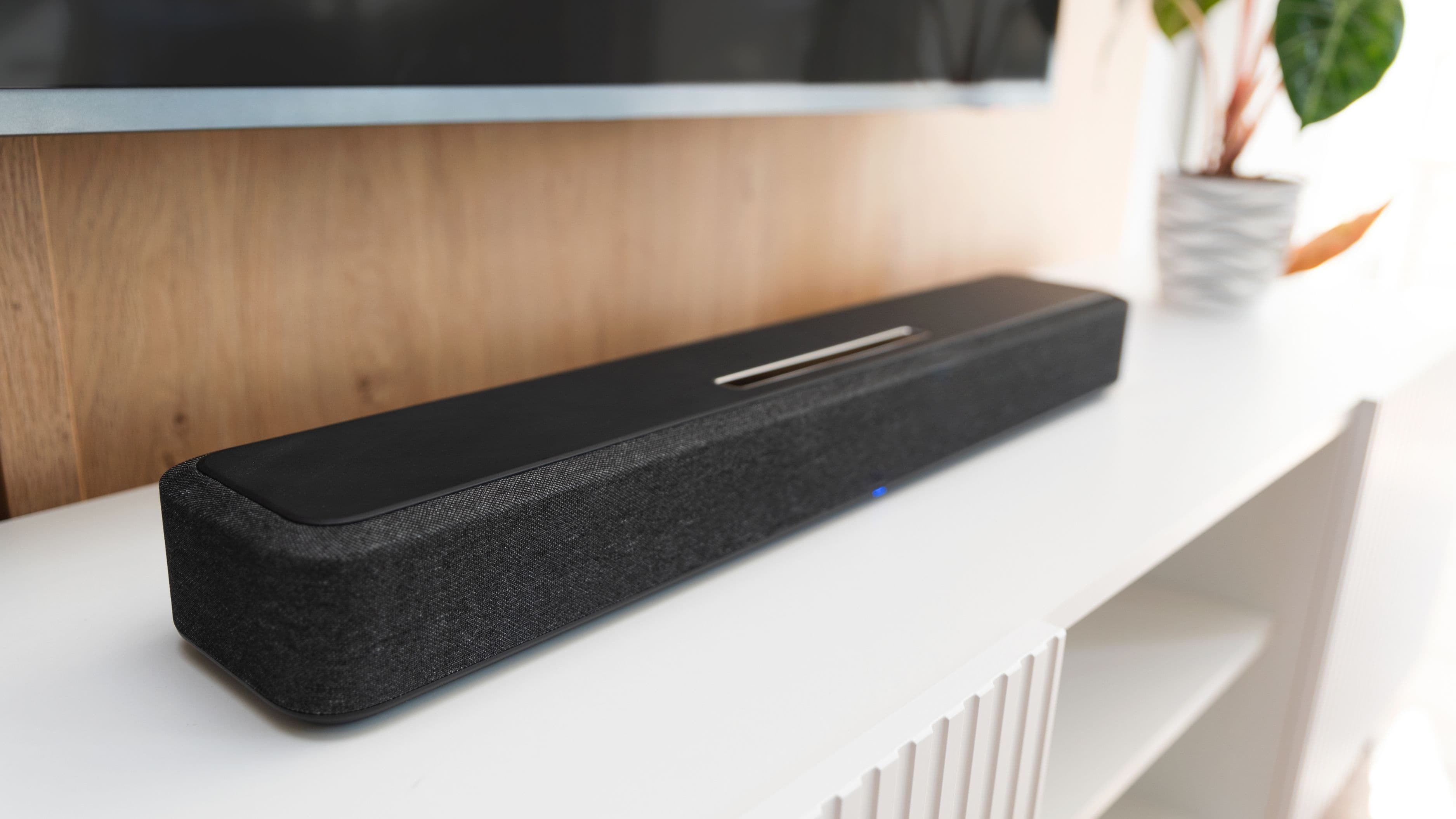
A soundbar or AV receiver that decodes Dolby Atmos. Your TV's built-in speakers cannot decode Atmos – the audio processing has to happen in a separate audio device. Options range from entry-level Atmos soundbars (starting around $150–$200) to mid-range models with upfiring speakers (which bounce sound off your ceiling to simulate height) to full AV receivers paired with dedicated ceiling or upfiring speakers ($500 and up for a reasonable setup).
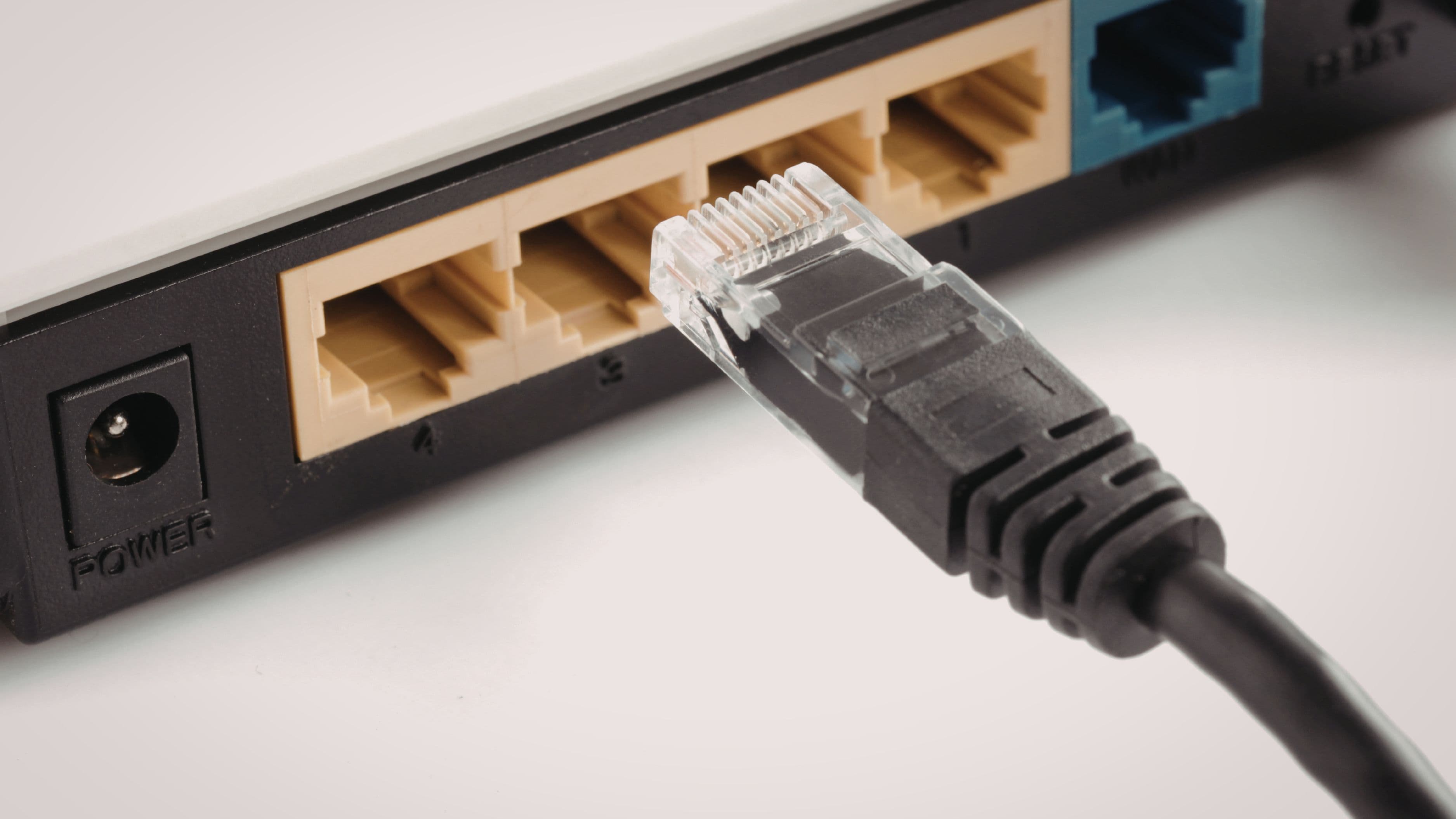
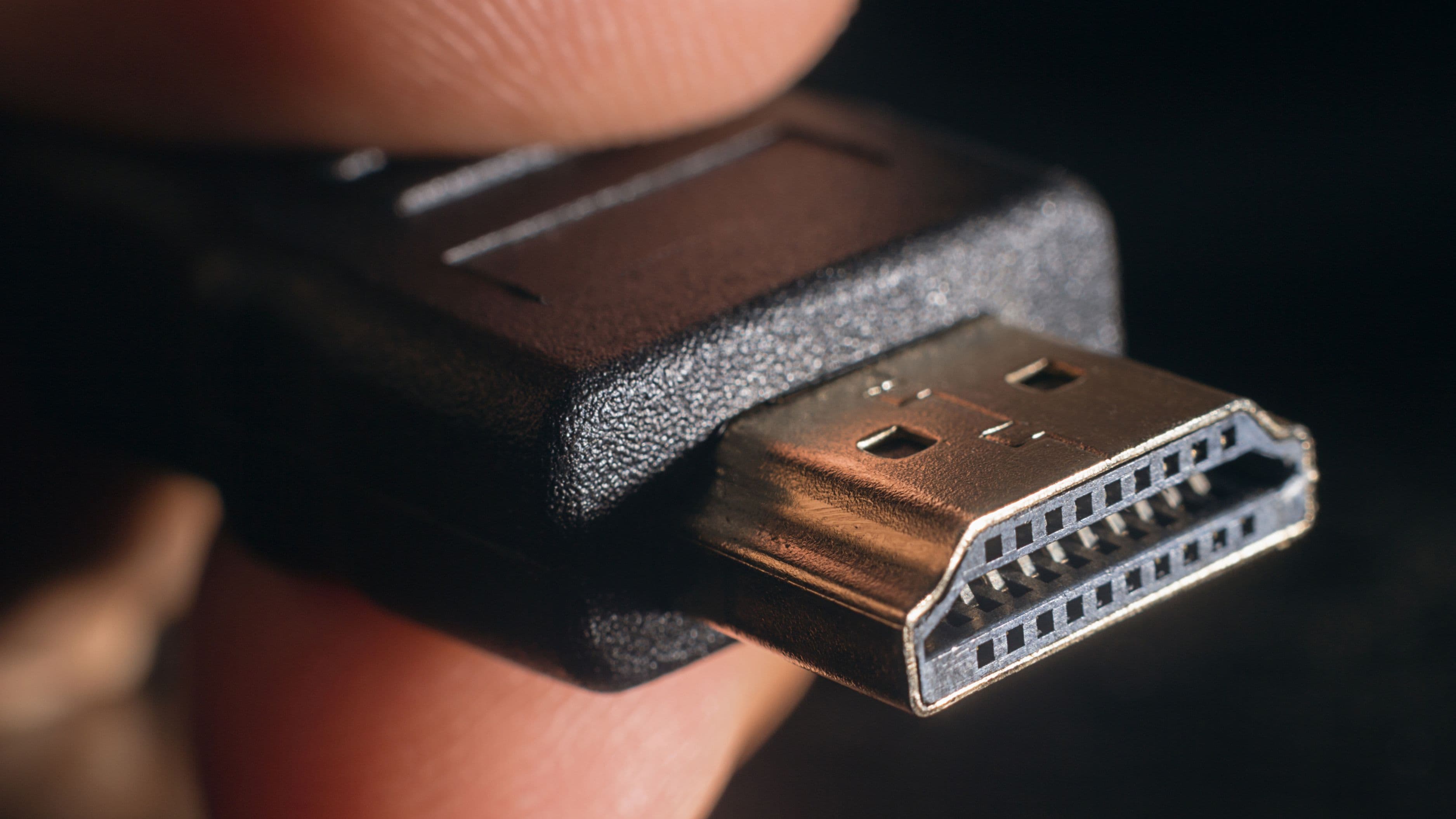
An HDMI cable that supports ARC or eARC. The connection between your TV and your soundbar or receiver needs to carry the Atmos signal. HDMI ARC (Audio Return Channel) works for most Atmos content. HDMI eARC (enhanced ARC) is needed for lossless Atmos formats like Dolby TrueHD with Atmos, which some sources output. Most HDMI 2.1 cables support eARC – check that your TV's HDMI ARC port is actually eARC if you want lossless quality.
A streaming subscription that includes Atmos content. Netflix, Disney+, Apple TV+, Amazon Prime Video, and HBO Max all offer Dolby Atmos content, but it's typically on higher subscription tiers. Netflix requires the 4K plan. Confirm before assuming your current plan includes it.
Step 1: Connect Your Audio Equipment
Connect your soundbar or AV receiver to your TV using an HDMI cable plugged into the ARC or eARC port on your TV. This port is almost always labeled – look for "ARC" or "eARC" printed next to one of the HDMI inputs on the back of the TV. Using the wrong HDMI port (one without ARC) means audio won't pass from the TV to your soundbar at all.
If you're using an AV receiver with a separate speaker setup, connect the receiver to the TV via HDMI ARC/eARC, then connect your streaming device directly to the receiver via HDMI rather than to the TV. This keeps the signal chain cleaner and avoids potential passthrough issues that can occur when audio goes TV → receiver instead of device → receiver → TV.
Once connected, turn on both devices and confirm the TV recognizes the connected audio device. Most smart TVs show a notification when an ARC connection is established, or you can check under Settings → Audio → Sound Output.
Step 2: Enable HDMI-CEC and ARC on Your TV
HDMI-CEC (Consumer Electronics Control) is the technology that lets your TV communicate with connected devices over HDMI – including telling your soundbar to wake up when the TV turns on and to receive audio correctly. It goes by different brand names on different TVs: Samsung calls it Anynet+, LG calls it SimpLink, Sony calls it BRAVIA Sync. Whatever it's called on your TV, find it in the settings and make sure it's enabled.
While you're in the audio settings, look for the ARC or eARC option and confirm it's turned on. Some TVs have it disabled by default. Without this enabled, audio won't route through the ARC connection regardless of how everything is physically connected.
Step 3: Configure Your Streaming Device Audio Settings
This is where most setups go wrong. Your streaming device needs to be configured to output Dolby Atmos correctly, and the default settings aren't always right.
On Apple TV 4K, go to Settings → Video and Audio → Audio Format → and select either "Dolby Atmos" or "Best Available." If your audio device is confirmed Atmos-capable, choose Dolby Atmos. The Apple TV will then check what your connected audio device supports and calibrate accordingly.
On Amazon Fire TV, go to Settings → Display & Sounds → Audio → Dolby Atmos → and toggle it on. Also check that "Surround Sound" is set to "Best Available."
On Roku Ultra, go to Settings → Audio → Audio Mode → and select "Auto (Dolby Atmos)." Roku also has an HDMI mode setting – confirm it's set to "Auto" rather than a specific format that might exclude Atmos.
On NVIDIA Shield TV, go to Settings → Device Preferences → Sound → and set the audio format to "Auto (Bitstream)." This tells the Shield to pass the audio signal as-is to your receiver or soundbar for decoding.
If you're streaming from a game console, check the audio settings in the console's system menu rather than inside individual apps – the Atmos setting is system-level on both PS5 and Xbox Series X.
Step 4: Configure Your Soundbar or Receiver
Your soundbar or AV receiver also needs to be set up correctly to receive and decode the Atmos signal. Consult your specific device's manual for the exact menu path, but the general principle is the same: find the audio input settings and confirm that the HDMI ARC/eARC input is active and that Dolby Atmos decoding is enabled rather than a fallback mode like PCM or Dolby Digital 5.1.
On most AV receivers, there's a display on the front panel that shows what audio format is currently being decoded. When Atmos content is playing and your setup is working correctly, you should see "Dolby Atmos" or "DD+ Atmos" displayed there. If you see "PCM," "Dolby Digital," or nothing, something in the chain isn't configured correctly.
If you're using an Atmos soundbar with upfiring speakers, the soundbar handles Atmos processing internally. Most soundbars in this category have an app or a settings menu where you can enable or confirm Atmos mode – check the manufacturer's documentation for yours.
Step 5: Play an Atmos Title and Verify
Open Netflix, Disney+, or Apple TV+ and search specifically for content labeled with a Dolby Atmos badge. Netflix labels Atmos titles in their description metadata. Apple TV+ shows the audio format on the content detail page. Disney+ displays Dolby Atmos in the same row as the video format (4K, HDR).
Start playing the content and check two things: the display on your AV receiver (if you have one) should show Dolby Atmos, and you should be able to tell a difference from standard stereo in the first few minutes of an action or ambient scene. If you have a receiver and it's showing PCM instead of Atmos, the passthrough isn't working correctly – go back through Steps 2 and 3 and check that CEC/ARC is enabled and the device audio settings are outputting Atmos rather than PCM or stereo.
Common Mistakes That Break the Setup
Using the wrong HDMI port is the most frequent issue. There is usually only one HDMI ARC or eARC port on a TV, and it's typically HDMI 2 or HDMI 3 – not HDMI 1. Double-check the label next to each port before assuming.
Leaving streaming device audio on the default setting means many devices output stereo or standard Dolby Digital rather than Atmos until you manually change the audio format in settings. The default is not always "best available."
Using an optical (Toslink) audio cable instead of HDMI ARC will not carry Dolby Atmos. Optical cables are limited to standard Dolby Digital 5.1 – they cannot transmit Atmos. If your soundbar only connects via optical, you won't get Atmos regardless of everything else in the setup.
Assuming your soundbar supports Atmos when it doesn't is worth checking before you go through the whole setup. Many soundbars advertise "virtual surround" or "3D audio" without supporting actual Dolby Atmos decoding. Look for "Dolby Atmos" explicitly in the product specifications, not just "immersive audio" or similar marketing language.
Realistic Expectations
Entry-level Atmos soundbars with simulated height processing (no physical upfiring speakers) will give you a wider, more immersive sound than stereo but won't fully replicate the height dimension of a well-configured speaker system. Mid-range soundbars with upfiring speakers do a noticeably better job, particularly in rooms with flat, acoustically reflective ceilings between 8 and 10 feet high. Full speaker systems with dedicated overhead or upfiring speakers deliver the best results but require more investment and installation effort.
Room acoustics matter more than most guides acknowledge. A very absorptive room with thick carpeting, heavy curtains, and upholstered furniture will produce a less impactful Atmos experience than a room with harder surfaces that reflect sound more effectively. This doesn't mean you need to redesign your living room, but it explains why the same setup can sound different in different homes.
FAQ
Do I need a 4K TV to use Dolby Atmos? No. Dolby Atmos is an audio format, not a video format. It's independent of your TV's resolution. However, because 4K content and Atmos audio are often bundled together on streaming platforms and most modern 4K TVs have better HDMI specifications than older HD televisions, there's a practical correlation between having a newer TV and having the connections needed to make Atmos work.
Can I get Dolby Atmos through Bluetooth? No. Bluetooth audio compression doesn't support Dolby Atmos. Atmos requires a wired HDMI ARC/eARC connection or, in some cases, a direct HDMI connection between your source device and your audio equipment. Wireless soundbars that claim Atmos support receive the signal through HDMI and then transmit surround sound to satellite speakers wirelessly – the HDMI connection is still required.
Why does my receiver show Dolby Digital instead of Dolby Atmos? The most common causes are: the streaming device audio settings aren't configured to output Atmos, the HDMI ARC port rather than eARC is being used with content that requires eARC for Atmos, the streaming subscription tier doesn't include Atmos, or the content you're watching doesn't have an Atmos mix available. Work through each of those systematically – it's almost always a settings issue rather than a hardware failure.
What's the difference between Dolby Atmos and DTS:X? Both are object-based surround sound formats that add height information beyond traditional channel-based surround. Dolby Atmos is more widely supported on streaming platforms – Netflix, Disney+, Apple TV+, and Amazon Prime Video all use it. DTS:X appears more frequently on physical Blu-ray discs. For home streaming specifically, Dolby Atmos is the more practical format to optimize for.
Is Dolby Atmos worth the cost of upgrading my audio setup? If you watch a lot of movies and TV at home and your current setup is stereo TV speakers or a basic soundbar, yes – even a mid-range Atmos soundbar in the $250–$400 range is a meaningful upgrade. If you already have a good 5.1 surround system, the incremental improvement from adding Atmos height channels is real but less dramatic. The biggest impact tends to be for people moving from no external audio device to an Atmos-capable soundbar for the first time.
📚 Sources
Dolby – What Is Dolby Atmos? Official Overview: https://www.dolby.com/technologies/dolby-atmos/
Netflix Help Center – Dolby Atmos Supported Devices and Plans: https://help.netflix.com/en/node/23931
Apple TV+ – Supported Audio Formats Including Dolby Atmos: https://support.apple.com/en-us/101605
Amazon – Dolby Atmos on Prime Video: https://www.amazon.com/gp/help/customer/display.html?nodeId=G2UFZM7YNKBWQYFC
HDMI Forum – HDMI 2.1 and eARC Specification Overview: https://www.hdmi.org/spec21sub/eARC
Rtings.com – How to Set Up Dolby Atmos on Your TV: https://www.rtings.com/tv/learn/dolby-atmos
The Verge – Best Dolby Atmos Soundbars: https://www.theverge.com/22557765/best-dolby-atmos-soundbar
Sound & Vision – Understanding Dolby Atmos for Home Theater: https://www.soundandvision.com/content/understanding-dolby-atmos
Tom's Guide – How to Enable Dolby Atmos on Apple TV 4K: https://www.tomsguide.com/how-to/how-to-enable-dolby-atmos-on-apple-tv-4k
Digital Trends – HDMI ARC vs eARC: What's the Difference: https://www.digitaltrends.com/home-theater/hdmi-arc-vs-earc/