
This guide is a step-by-step starter pack for someone who just cut the cord. It covers the hardware you need, the streaming services that cover the most ground, how to handle live TV, and how to build the whole thing without accidentally spending as much as your cable bill.
Step 1: Start With the Right Streaming Device
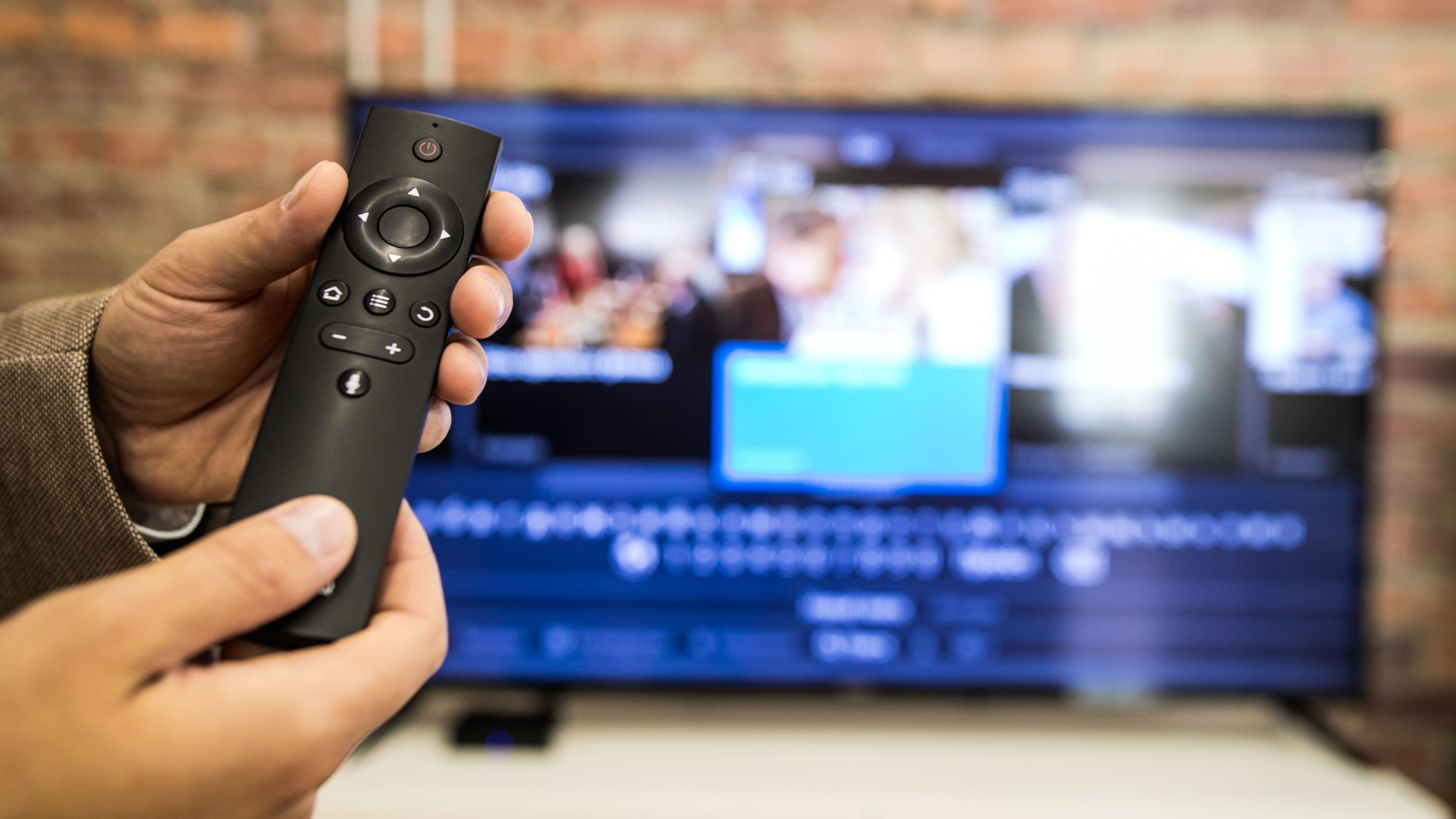
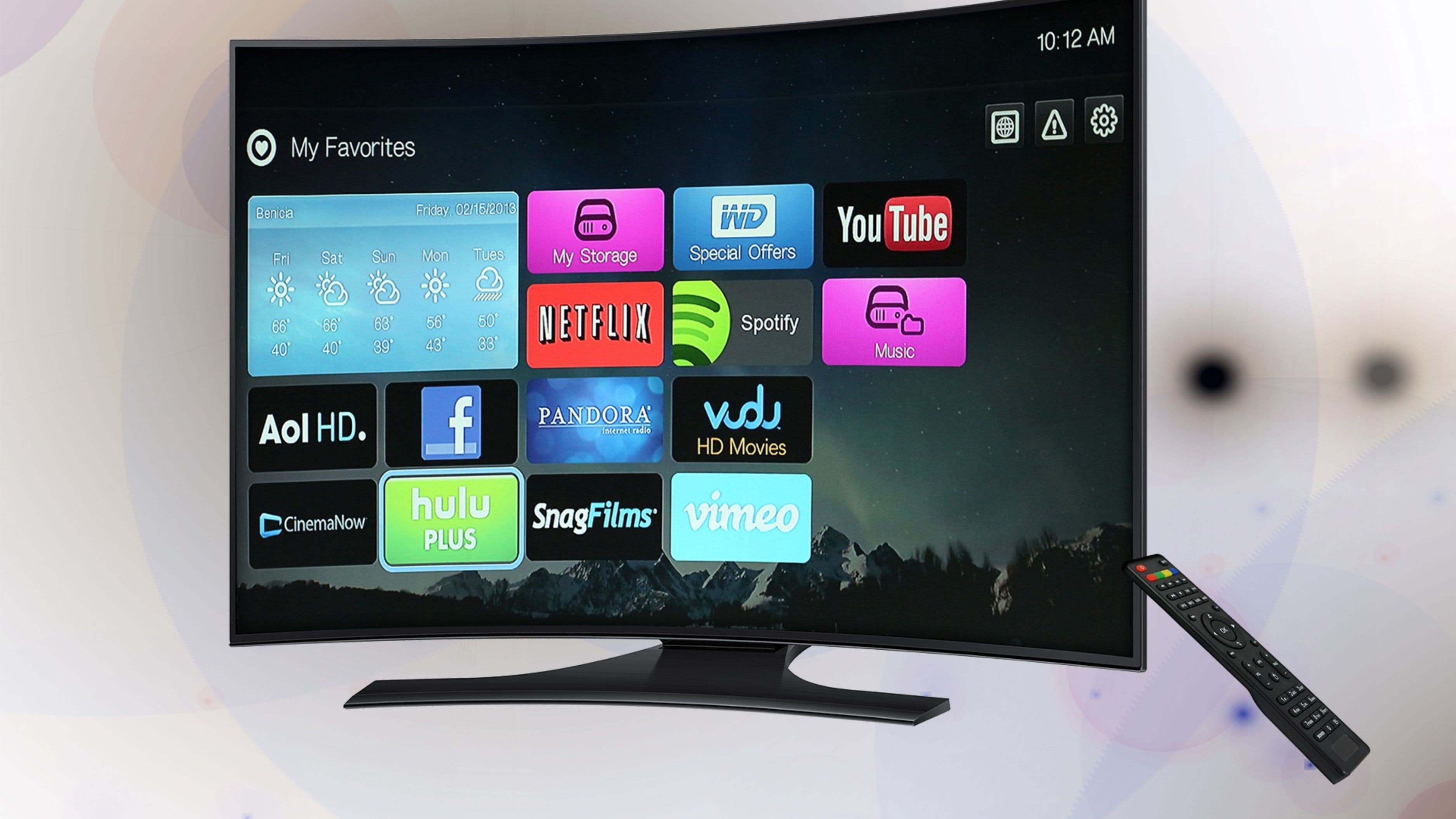
Before any subscription decision, you need a device to run everything on. Most modern smart TVs have streaming apps built in, but the built-in software on TVs — especially those more than two or three years old — is often slow, limited in app availability, and poorly updated. A dedicated streaming stick or box connected to your TV's HDMI port almost always delivers a better experience.
The most widely recommended options are the Roku Streaming Stick 4K ($49.99), the Amazon Fire TV Stick 4K Max ($59.99), and the Apple TV 4K ($129). For most households making the cord-cutting switch, the Roku Streaming Stick 4K is the best starting point. Roku's platform is genuinely neutral — it doesn't push you toward Amazon or Apple content, it carries every major streaming app including free services, and the interface is clean and easy to navigate for any age group. The Fire TV Stick is a strong alternative, particularly if you're already deep in the Amazon ecosystem. The Apple TV 4K is worth the premium price for Apple households, but it's not necessary for everyone.
If your TV has a USB port, the streaming stick will draw power directly from it with no extra cable needed. Plug it in, connect to your home Wi-Fi, and you're ready to start adding apps.
Step 2: Figure Out Your Wi-Fi Speed
Streaming puts consistent demand on your internet connection in a way that basic web browsing doesn't. Before you commit to multiple streaming services, check that your home internet can actually handle them without buffering or quality drops.
A single 4K stream needs around 25 Mbps. Two simultaneous streams (common in a household with kids and adults watching different things) needs 50 Mbps or more. Most internet plans in the 100–200 Mbps range handle a streaming household comfortably, but there's one variable that matters more than raw speed: the connection between your streaming device and your router.
A streaming device connected to your router via Wi-Fi is perfectly functional, but if your router is in a different room or on a different floor, signal strength can be inconsistent. For the best streaming experience, position your router centrally and — if you have a larger home — consider a Wi-Fi mesh system (like Eero or Google Nest Wifi) to eliminate dead zones. Ethernet connection directly to your streaming box eliminates buffering entirely if you can run a cable, which is worth doing for a home theater setup.
Step 3: Build Your Streaming Service Stack
This is where most new cord-cutters overspend. The instinct is to sign up for everything at once because everything sounds useful. Resist it. Start with one or two services, watch what you actually use for a month, then decide what to add.
Here's how to think about building your stack:
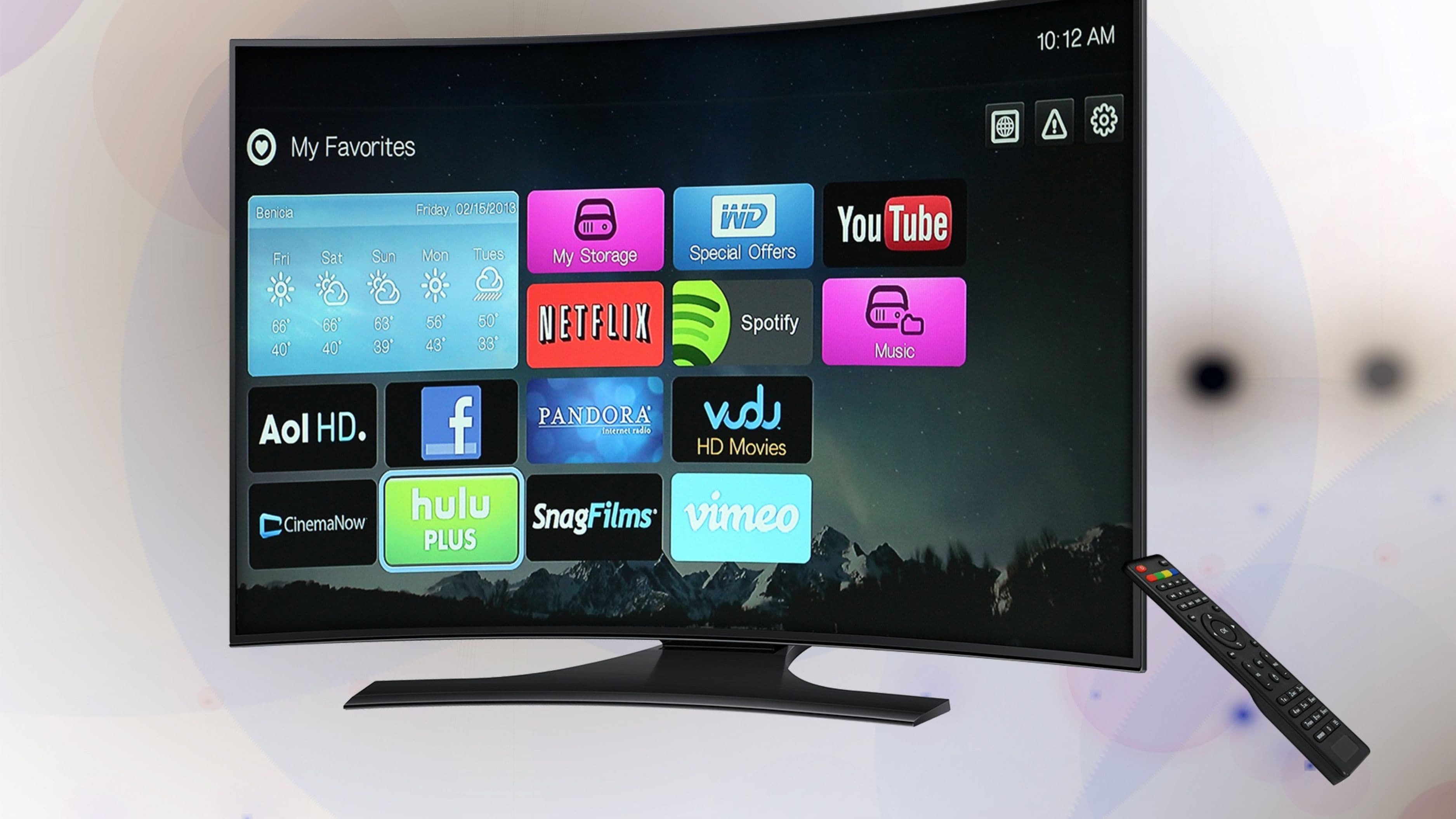
Start with one broad, deep library service. Netflix ($15.49–$22.99/month) and Max ($9.99–$15.99/month) are the two strongest options here. Netflix has the most recognizable global originals and a broad appeal across age groups. Max combines HBO's prestige drama library with Warner Bros. films and a strong DC and reality content catalog. Most households with varied tastes gravitate toward one of these two as the foundation. If you have kids and adults with different tastes, Disney+ ($7.99/month) is another strong foundation option given its combined Disney, Pixar, Marvel, and Star Wars library.
Add a network TV layer if you follow current broadcast shows. Hulu ($7.99/month with ads) is the best option here — it carries current-season content from ABC, NBC, CBS, and Fox the day after broadcast, which no other single platform does as comprehensively. If you were a regular network TV watcher on cable, Hulu makes the transition significantly less jarring.
Add sports coverage selectively. This is where cord-cutting gets more complicated, and we'll cover it in detail in the next section. The short version: Peacock handles NFL Sunday Night Football and Premier League, ESPN+ covers a wide range of sports for $10.99/month, and Hulu + Live TV or YouTube TV are options for households that need broad live sports coverage.
Use free, ad-supported services to fill gaps. Tubi, Pluto TV, and Peacock's free tier are all genuinely free with ads and offer large libraries of older movies, TV shows, and some live content. There's no reason not to add these — they cost nothing and significantly expand what's available without touching your budget.
A reasonable starting stack for a household of mixed tastes:
Netflix or Max – $9.99–$15.49/month (pick one to start)
Hulu – $7.99/month (ad-supported)
Peacock Free – $0
Tubi – $0
Total at this stage: under $25/month, with access to thousands of hours of content. That's a starting point worth living with for 30 days before deciding what else you actually need.
Step 4: Solve the Live TV Problem
Live TV is the hardest part of cord-cutting to solve cleanly, and it's the main reason some people go back to cable. But there are good options — you just need to pick the right one for your situation.
For free local channels (ABC, CBS, NBC, Fox, PBS): A digital antenna is the cheapest and most reliable solution. An indoor antenna ($25–$40 on Amazon or at any electronics store) picks up over-the-air broadcast signals in HD quality — often better quality than cable's compressed signal. If you live within 30–50 miles of a broadcast tower, an indoor antenna works well. Check AntennaWeb.org or TVFool.com to see what channels are available at your address before buying. Rural areas with weak signals may need an outdoor or attic-mounted antenna for reliable reception.
For live sports and broader live TV: The two best virtual cable replacement services are Hulu + Live TV ($82.99/month with Disney+ and ESPN+ included) and YouTube TV ($72.99/month). Both offer 80–100+ live channels including sports, news, and entertainment, with cloud DVR for recording. YouTube TV's unlimited DVR storage is a genuine advantage. Hulu + Live TV's bundle with Disney+ and ESPN+ gives more total content per dollar. Either one replaces cable comprehensively but at a price point that narrows the savings gap compared to basic cable packages.
For households where live sports is the only remaining reason to keep something cable-adjacent, Sling TV ($40–$55/month) is the more targeted option. It carries ESPN, ESPN2, and a range of sports channels without the full live TV package, making it a more affordable sports-focused add-on to a streaming stack.
Step 5: Set Up a Free Channel Hub
One of the advantages of cutting cable that rarely gets mentioned is access to a genuinely large library of free, ad-supported content through apps that come pre-installed on most Roku, Fire TV, and Apple TV devices.
Tubi is one of the most impressive free streaming services available. It has thousands of movies and TV shows — including a lot of genuinely watchable content, not just obscure bottom-of-the-barrel stuff — all free with ads. Tubi has significantly expanded its library in recent years, and it's worth browsing before assuming there's nothing worth watching on free platforms.
Pluto TV operates more like traditional cable in its free tier — it has live channels you can tune to at any time, alongside an on-demand library. There are channels dedicated to specific genres (news, true crime, comedy, sports highlights) that fill the "leave something on in the background" role that cable TV used to fill for many people.
Peacock's free tier covers a meaningful chunk of NBCUniversal's library, including current NBC shows (with some delay), classic sitcoms, and some live sports and news content.
Adding all three of these to your streaming device takes about five minutes and costs nothing. They're the equivalent of the basic cable channels you used to flip through, and they eliminate the "there's nothing to watch" feeling when you don't want to commit to something specific.
Step 6: Manage Your Subscriptions Actively
The final piece of the cord-cutting setup that most guides skip is the ongoing management of what you're paying for. Streaming services make it easy to forget you're subscribed — they don't send invoices the way your cable company did, and the monthly charge blends into your credit card statement.
A simple habit: review your streaming subscriptions every three months. Ask whether you've actually watched each one in the past 30 days. If the answer is no, cancel it — you can always resubscribe when something you want to watch appears. Most platforms make this easy, and unlike cable, there are no cancellation fees or contracts.
Several apps make subscription tracking easier. Rocket Money and Truebill both identify and list your recurring subscriptions in one place, which is useful when you've accumulated several services over time. Your credit card's app may also show recurring charges grouped in a way that makes them easy to review.
The whole point of cord-cutting is to pay for what you use. Letting unused subscriptions run is just a different version of the cable bill you just escaped.
Sample Setup: Budget vs Full Stack
Budget setup (~$23/month):
Streaming device: Roku Streaming Stick 4K (one-time $49.99)
Netflix Basic with ads: $6.99/month
Hulu (with ads): $7.99/month
Peacock Free + Tubi + Pluto TV: $0
Antenna for local channels: one-time $25–$40
Full household setup (~$55–$65/month):
Streaming device: Roku Ultra or Apple TV 4K (one-time $99–$129)
Netflix Standard: $15.49/month
Max (ad-supported): $9.99/month
Hulu (with ads): $7.99/month
Peacock Premium: $7.99/month
ESPN+ for sports: $10.99/month
Tubi + Pluto TV: $0
Both setups beat the average US cable bill ($83–$100+/month), and the full setup rivals cable's content depth for a significantly lower cost.
FAQ
Do I need a streaming device if my TV is already a smart TV? Built-in smart TV apps work, but they're often slower, less updated, and more limited in available apps than a dedicated streaming stick. A $50 Roku or Fire TV Stick typically provides a noticeably better experience and is worth the one-time cost.
Can I watch local news without cable? Yes, through two options: a digital antenna picks up local broadcast signals for free in most areas. Additionally, some local news stations stream live on their own apps or websites, and services like Hulu + Live TV and YouTube TV include local channels in most markets.
What about 4K content – do I need a special plan for that? Some platforms include 4K on all plans (Disney+, Apple TV+). Others reserve it for higher tiers — Netflix requires the $22.99/month plan for 4K. Check the plan details for each service if 4K quality matters to you, and make sure your TV and streaming device both support 4K before upgrading.
How do I watch live sports without cable? It depends on the sport. NFL fans need Peacock (Sunday Night Football), Amazon Prime Video (Thursday Night Football), and ESPN or ESPN+ for Monday Night Football — no single service covers all NFL games. For a complete live sports solution, Hulu + Live TV or YouTube TV with their sports packages is the most comprehensive option, though also the most expensive.
Cutting cable is a genuinely better deal for most households once the setup is done properly — the content is there, the savings are real, and the flexibility of starting and stopping services as your interests change is something cable never offered. Take it one step at a time, start lean, and build up from there.
📚 Sources
Roku – Streaming Stick 4K Overview: https://www.roku.com/en-us/products/players/roku-streaming-stick-4k
Hulu – Live TV and On-Demand Plans: https://www.hulu.com/plans
YouTube TV – Plan Overview: https://tv.youtube.com/welcome/
Tubi – About the Platform: https://tubitv.com/home
Pluto TV – Free Live TV Overview: https://pluto.tv/en/about
AntennaWeb – OTA Channel Lookup: https://www.antennaweb.org
FCC – Antenna and Over-the-Air TV Guide: https://www.fcc.gov/consumers/guides/over-air-reception-devices-rule
CNET – Best Streaming Services 2025: https://www.cnet.com/tech/services-and-software/best-streaming-services/