
Step 1: Confirm Your Internet Speed Can Actually Support It
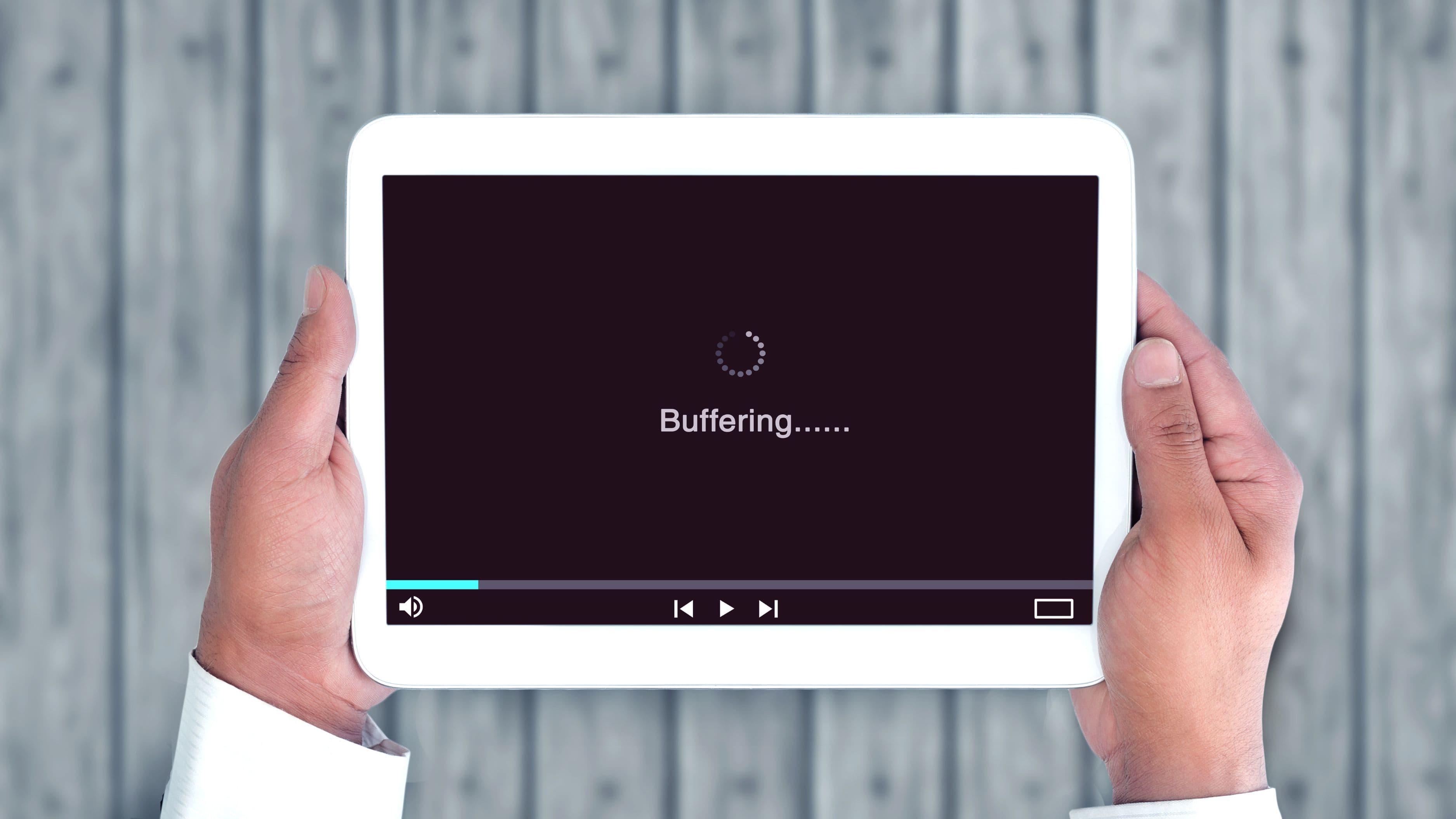
Before touching any settings, run a quick speed test on the same network your streaming device uses, ideally with other devices paused so you're getting an accurate read. Most services need at least 15-25 Mbps for reliable 4K streaming, and if your connection is hovering below that, no setting on the device itself will fix a picture that's constantly stepping down in quality to avoid buffering.
If your speed test looks fine but picture quality still dips during peak hours (evenings, weekends), that's often a sign of network congestion from your provider rather than your own setup, which is worth knowing before you assume the problem is your TV or streaming device.
Step 2: Check Your Cable, Not Just Your Settings
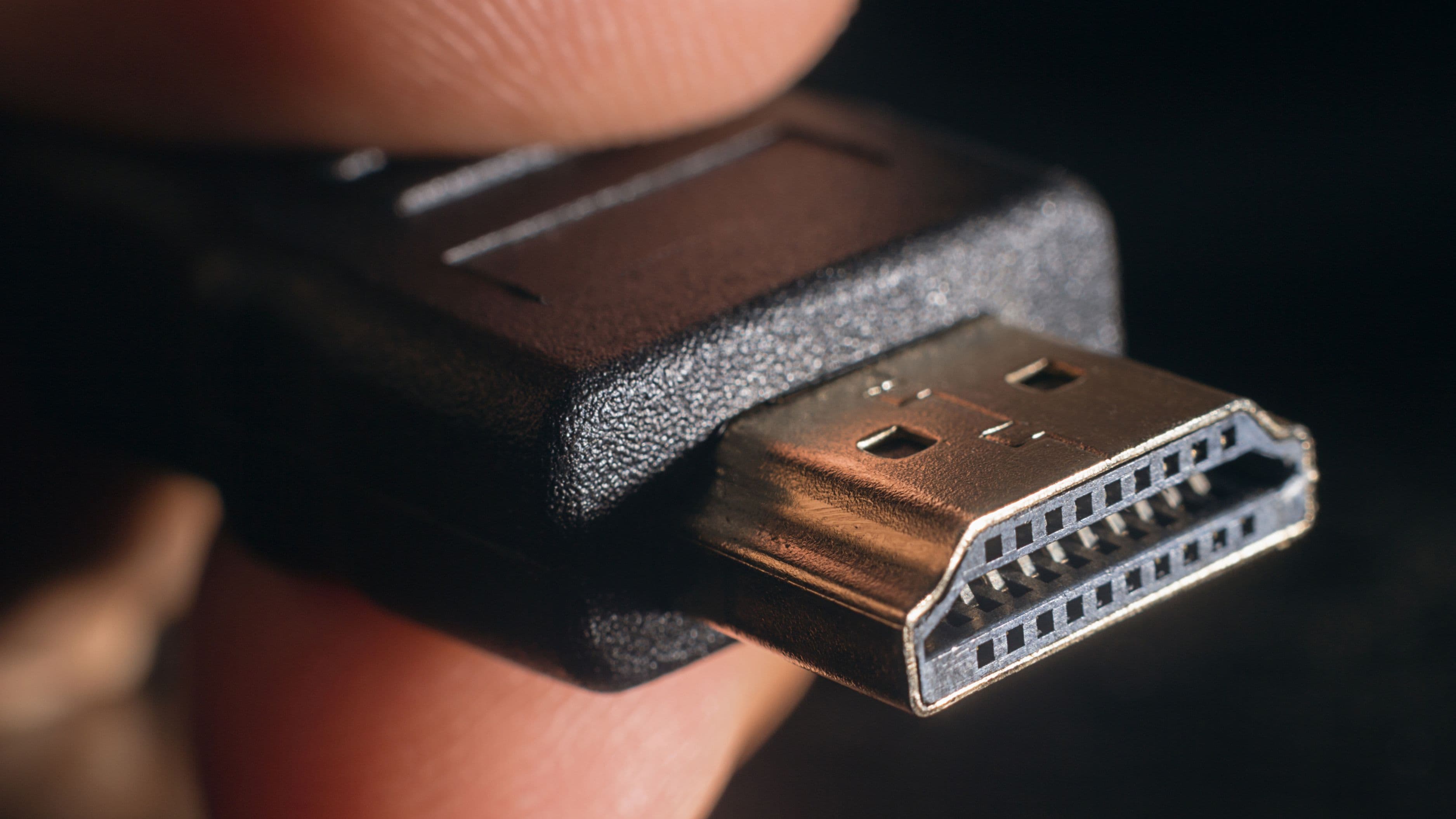
If you're using an HDMI cable more than a few years old, it may not support the bandwidth needed for 4K or HDR content, even if every setting on your TV and streaming device is correct. Look for cables labeled "High Speed" or "Premium High Speed" HDMI, or "Ultra High Speed" if you're aiming for 4K at higher frame rates or 8K content. This is a cheap, one-time fix that solves more picture quality issues than people expect, especially on older TV setups where the original cable has just been left in place for years.
Step 3: Set Your Streaming Device's Output Resolution Correctly
Go into your streaming device's display or video settings and confirm the output resolution matches your TV's actual capability – ideally set to match automatically, or manually set to 4K if your TV supports it. A surprising number of people have their streaming device outputting at 1080p on a 4K-capable TV, either from initial setup defaults or a settings reset, which caps picture quality regardless of what the streaming app itself is capable of delivering.
While you're in these settings, check whether HDR (High Dynamic Range) is enabled if both your TV and content support it. HDR settings are sometimes turned off by default or set to a mode that doesn't match your TV's supported HDR format (HDR10, Dolby Vision, HDR10+), so confirming this match matters for getting the richer contrast and color HDR content is designed to show.
Step 4: Adjust In-App Streaming Quality Settings
Most major streaming apps, including Netflix, Disney+, and Max, have their own internal data usage or video quality settings, separate from your device's display settings. These are sometimes set to "auto" in a way that prioritizes avoiding buffering over maximizing quality, or occasionally set to a lower fixed quality to save data, especially if the account was ever used on a limited mobile connection. Checking these settings within each app and setting them to the highest available quality (assuming your internet connection supports it) removes an easy-to-miss bottleneck.
Step 5: Adjust Your TV's Picture Settings, Not Just the Source
Even with a perfect signal reaching your TV, factory picture settings are often tuned for bright showroom lighting rather than accurate, natural-looking image quality at home. Switching your TV's picture mode to "Cinema," "Movie," or "Filmmaker Mode" (available on many newer TVs) typically disables aggressive processing effects like excessive motion smoothing and oversharpening, which can make content look artificially glossy or "soap opera"-like rather than how it was actually meant to look.
From there, adjusting brightness and contrast to suit your actual room lighting, rather than leaving default settings meant for a well-lit store display, makes a real difference in how accurate and detailed the picture looks, particularly in darker scenes where default settings often crush shadow detail.
Tips for Better Results
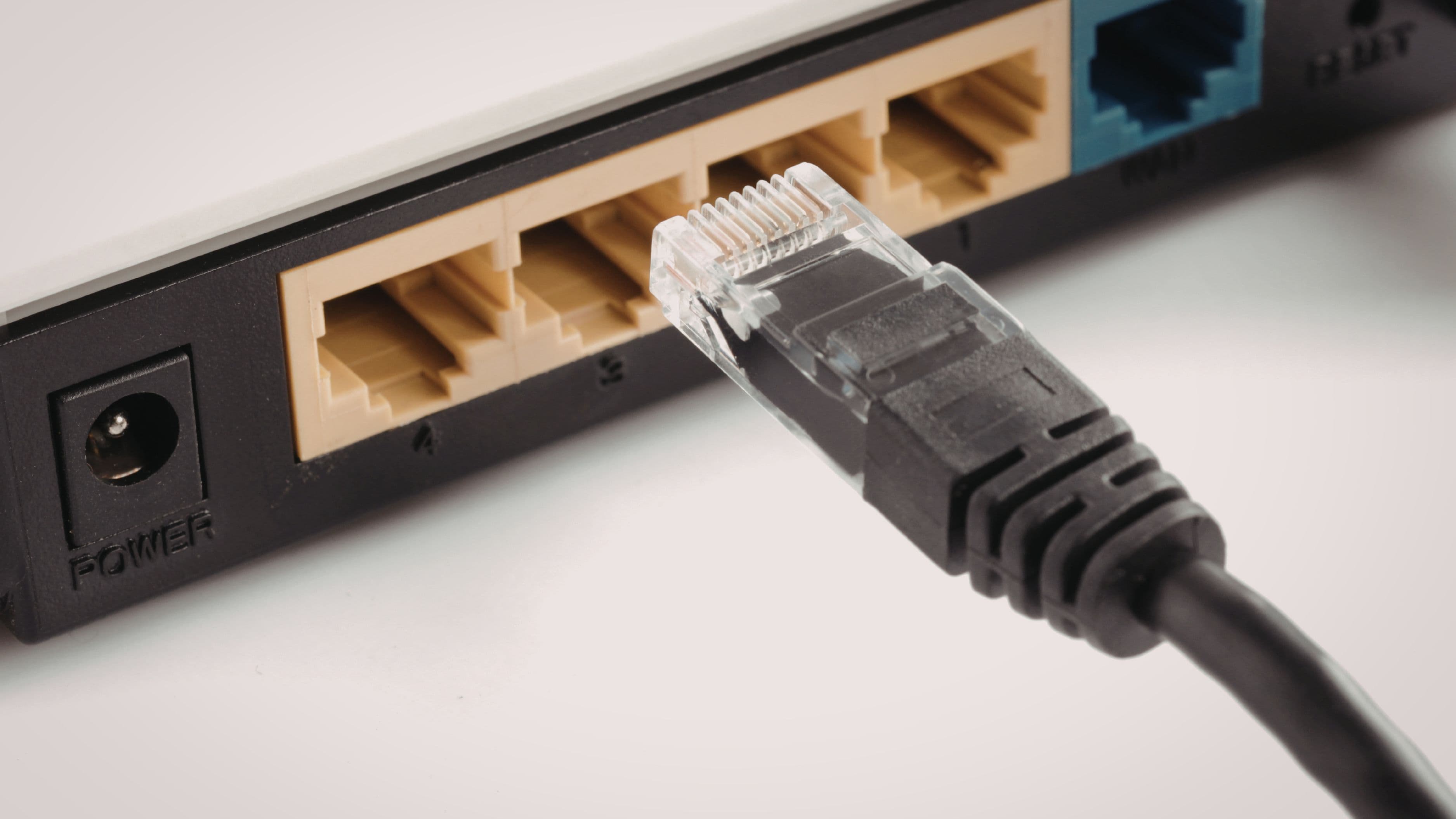
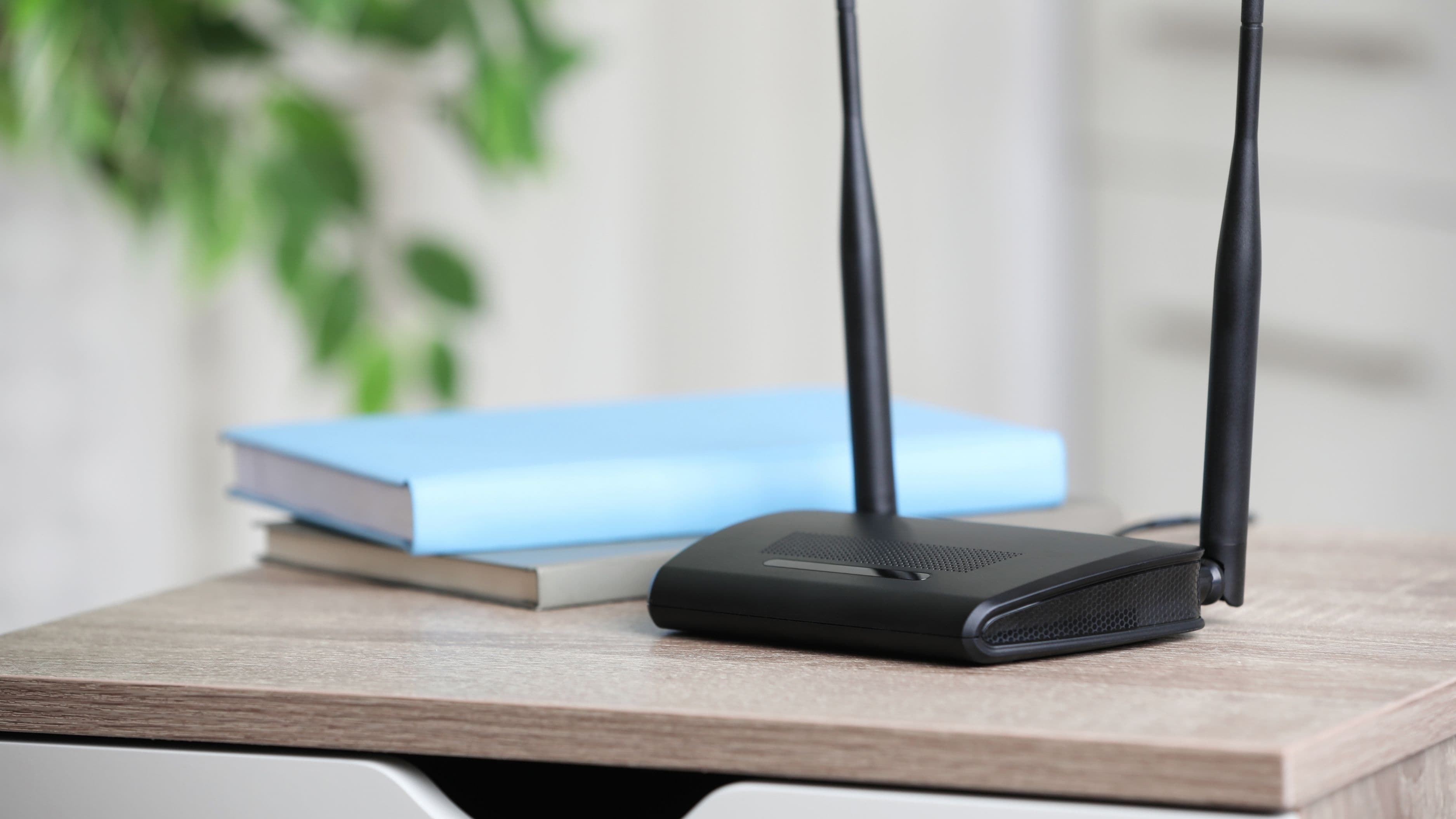
Restarting your streaming device periodically clears out background processes that can quietly affect streaming performance over time, especially on older or budget streaming devices with limited processing power. Positioning your router closer to your streaming setup, or using a wired ethernet connection instead of Wi-Fi if your device supports it, removes a common and often overlooked source of inconsistent streaming quality, particularly in homes with multiple devices competing for Wi-Fi bandwidth at once.
Common Mistakes to Avoid
Assuming a fast internet plan automatically means high-quality streaming ignores the fact that in-app settings, HDMI cables, and device output settings can all independently cap quality regardless of your actual connection speed. Leaving your TV on a bright, oversharpened factory picture mode is one of the most common reasons people feel like their expensive TV doesn't look as good as they expected, even though the fix is free and takes a few minutes. And skipping a periodic check of app-specific data and quality settings means an old, data-saving setting from months ago could still be quietly capping your picture quality without you realizing it.
FAQ
Why does my 4K TV still look blurry sometimes even after these fixes? This is often related to internet speed fluctuations during peak usage hours, or the specific content itself, since not everything on a streaming service is actually available in true 4K despite being labeled that way.
Do I need a new streaming device to get better picture quality? Not necessarily. Older streaming devices can sometimes bottleneck resolution or processing power, but for most setups, checking cables, output settings, and app quality settings solves the majority of picture quality issues without needing new hardware.
Is Filmmaker Mode actually better than a TV's standard picture mode? For most people, yes, since it disables processing effects that alter the image away from how content was originally mastered. Some viewers prefer the brighter, more processed look of standard or vivid modes, so it's worth comparing both to see which you personally prefer.
Does using Wi-Fi instead of ethernet actually make a noticeable difference? It can, especially in homes with multiple devices on the same network or weaker Wi-Fi signal strength in the room where you stream. A wired connection generally offers more consistent speed and is worth trying if you're experiencing inconsistent quality.
📚 Sources
Netflix – Internet Connection Speed Recommendations, https://help.netflix.com/en/node/306
HDMI Licensing Administrator – HDMI Cable Types Explained, https://www.hdmi.org/spec/hdmicables
Federal Communications Commission – Broadband Speed Guide, https://www.fcc.gov/consumers/guides/broadband-speed-guide